Set up the workspace
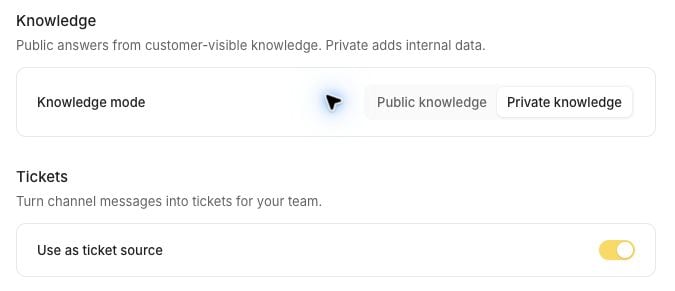
- Under Knowledge mode, choose Public knowledge for customer-visible knowledge or Private knowledge to include internal data.
- To create tickets from Slack, turn on Use as ticket source. It’s off by default. Previously unconfigured joined channels become Assistant, so choose your ticket channels below.
Configure your channels
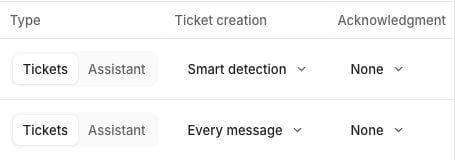
Under Channels, find a joined channel and choose its Type:- Tickets for tracked support requests.
- Assistant for answers when someone mentions
@Decimal. Configure replies in the Slack agent.
Add Decimal to channels
With ticket sourcing on, click Add beside a public channel. Choose its type and, for Tickets, a ticket creation mode. Click Save to join. With ticket sourcing off, Add joins immediately. Joining requires the optionalchannels:join permission. If you see Invite @Decimal, invite the bot from Slack instead. Private channels also require an invitation from Slack.
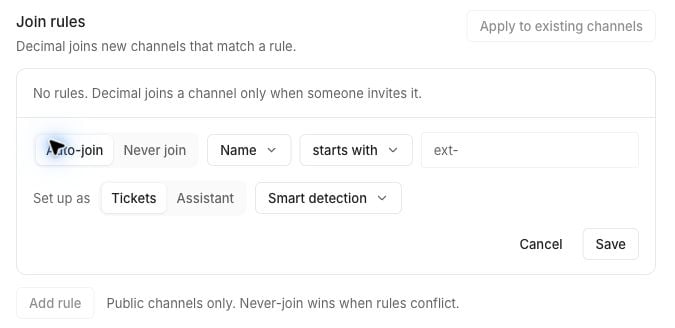
Automatically join new channels
With joining permission, use Join rules to join matching public channels:- Click Add rule. Choose Auto-join or Never join, then a channel-name or type condition.
- For an Auto-join rule, choose Set up as and the ticket creation mode if ticket sourcing is on.
- Click Save. Never join wins when rules conflict.