

What It Does
- Syncs tickets from your Zendesk account into Decimal
- Writes resolutions back as comments on the original Zendesk ticket
- Imports ticket conversations including all messages, attachments, and metadata
- Keeps tickets updated as new messages are added in Zendesk
Connect while signed into Zendesk as an admin. Zendesk limits ticket export to admins, so Decimal refuses any other account type. If that admin later loses access, sync stops until someone else reconnects.
Connecting Zendesk
- Sign into Zendesk as an admin in a browser tab. Being an admin in Decimal is not the same thing.
- Open Integrations: Go to Settings → Integrations, then click the Zendesk row.
- Enter your subdomain: just
acmeforacme.zendesk.com, with nohttps://or.zendesk.com.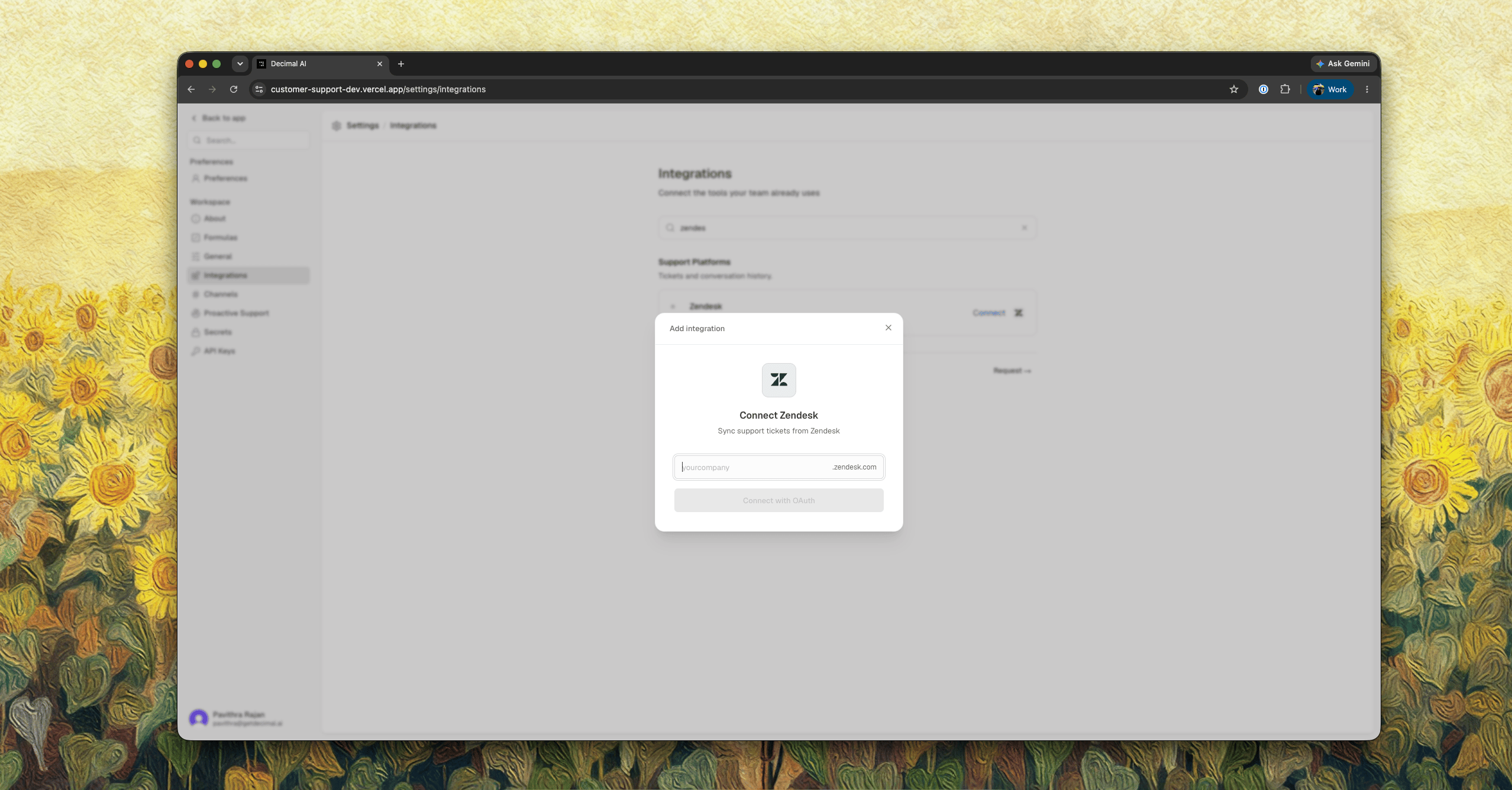
- Click Connect with OAuth. Zendesk shows the permissions below. Click Allow.
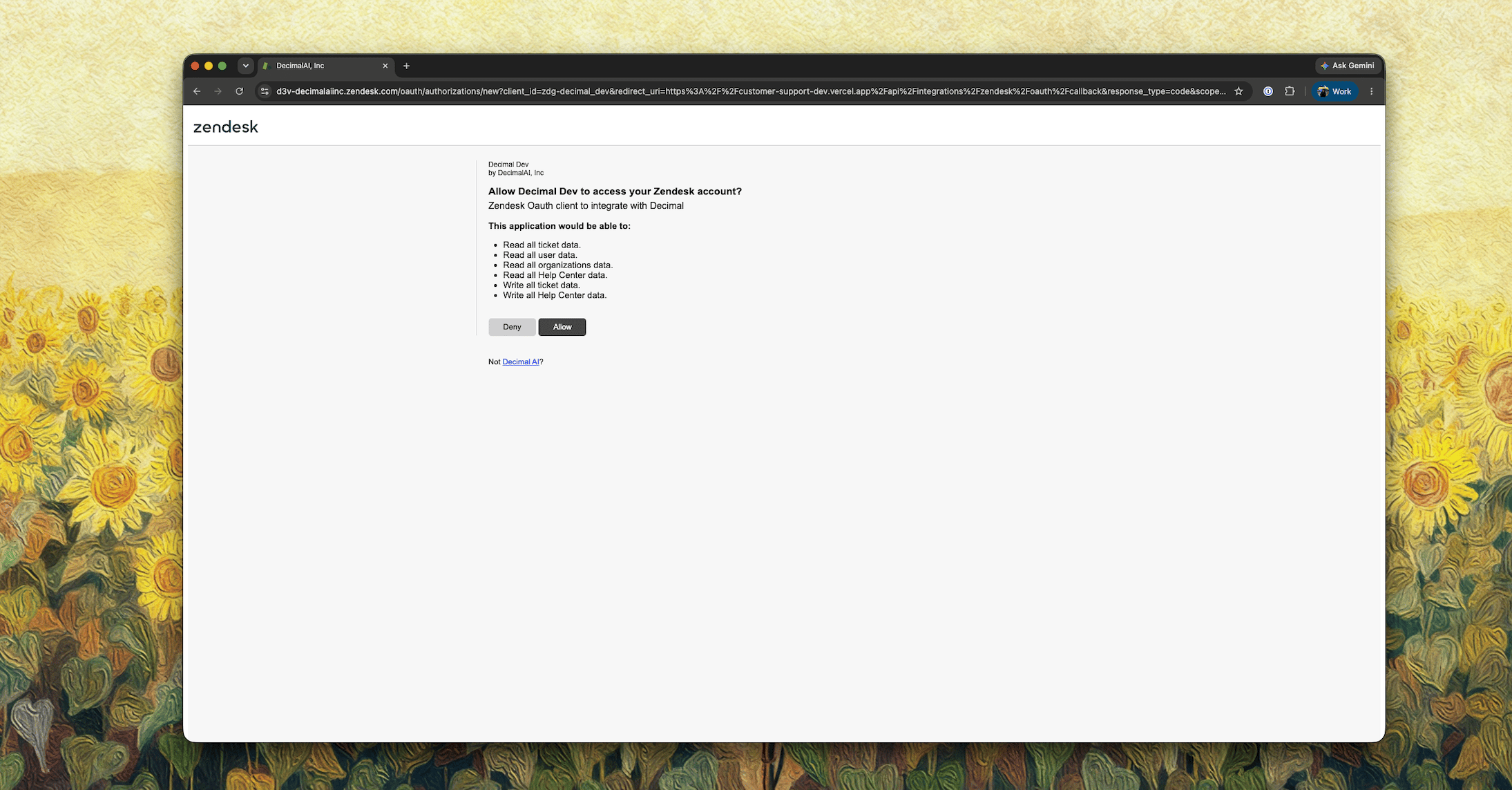
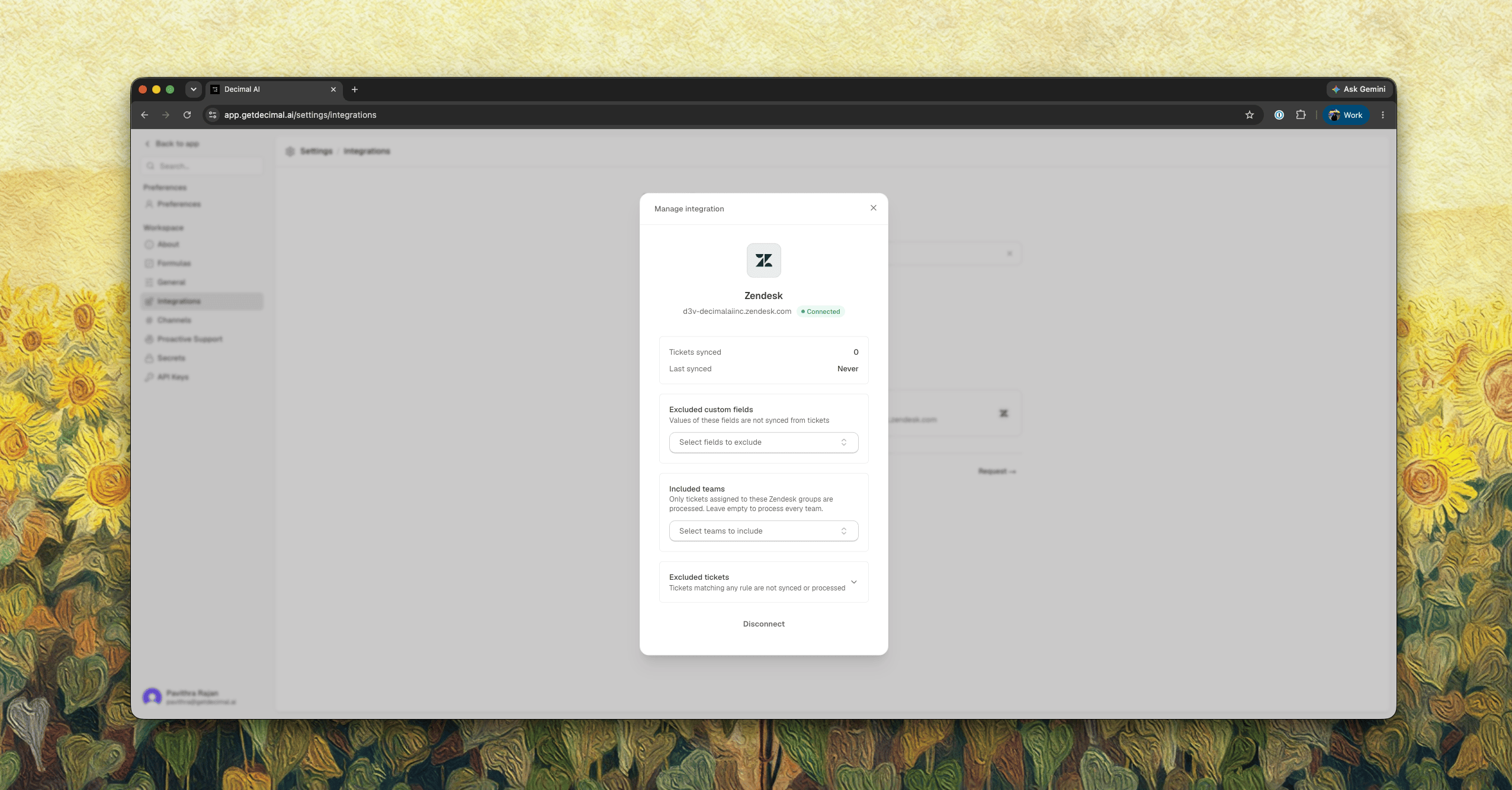
- You’ll land back in Decimal, connected.
Permissions
Zendesk is retiring its Incremental APIs for third-party apps from December 2, 2026. Decimal no longer uses them. Ticket sync uses
GET /api/v2/tickets under the tickets:read scope. No change to your connection is needed.Why OAuth Instead of an API Token
Zendesk is retiring API tokens: they never expire, can’t be scoped to specific endpoints, and work for anyone holding the token and its email address. OAuth is short-lived, renews itself, and is scoped to the access you approve.Already connected with an API token? It keeps working, and OAuth is now the only way to create a new connection. Use Switch to OAuth in the Zendesk panel before April 30, 2027.