

What It Does
- Syncs issues from Pylon into Decimal as support tickets
- Writes resolutions back as comments on the original Pylon issue
- Enables escalation from chat widgets to create new Pylon issues
Connecting Pylon
- Open Integrations: Go to Settings → Integrations.
- Click Pylon: Click on the Pylon integration row to open the configuration modal.
- Provide your API key: Enter your Pylon API key.
- Connect: Click Connect to save the configuration.
Webhook Setup
Configure a webhook for real-time ticket updates when customers reply to issues.- Get a Decimal API key from Settings → API Keys.
-
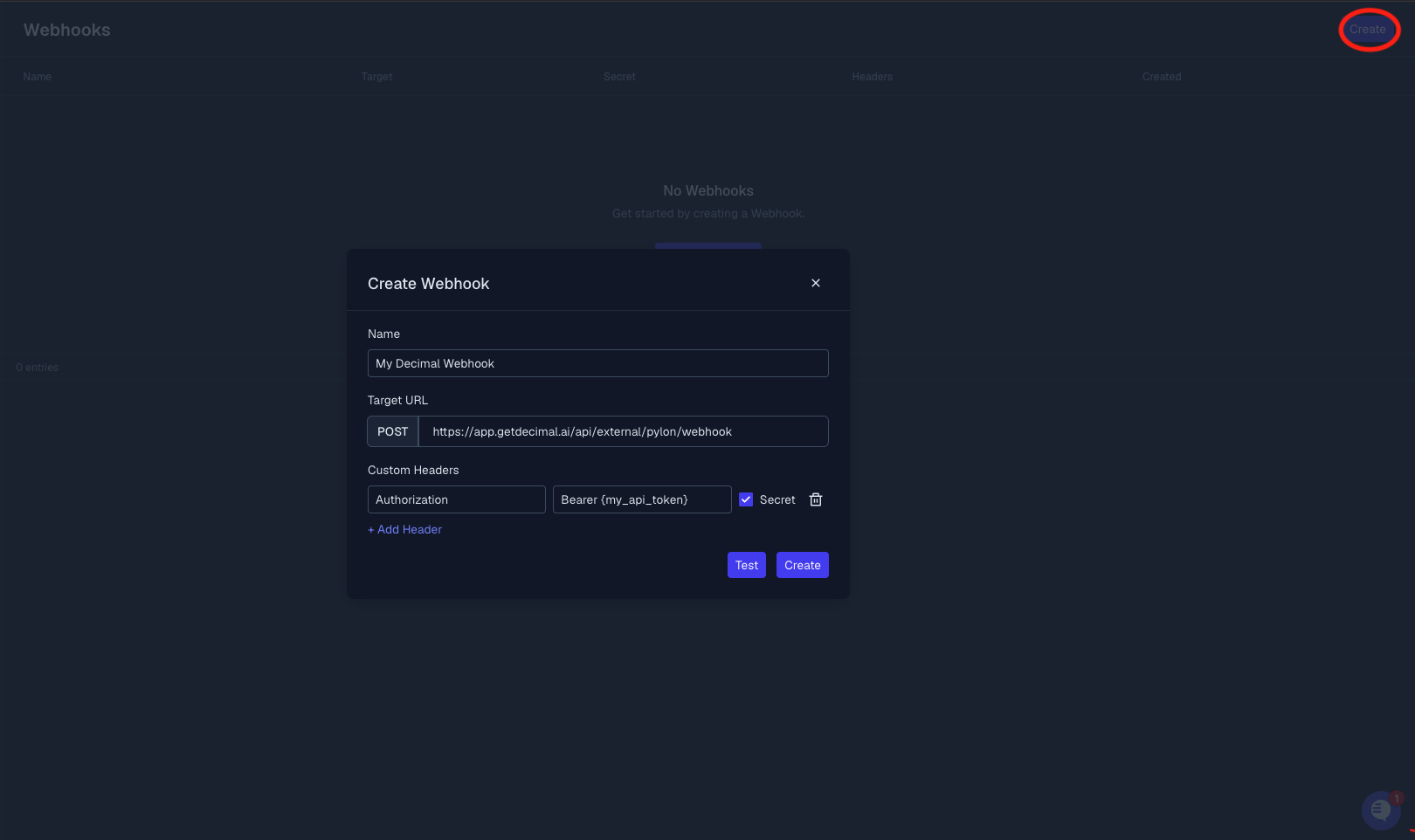
Create a webhook in Pylon Webhooks Settings with this URL:
-
Add an Authorization header to the webhook:
-
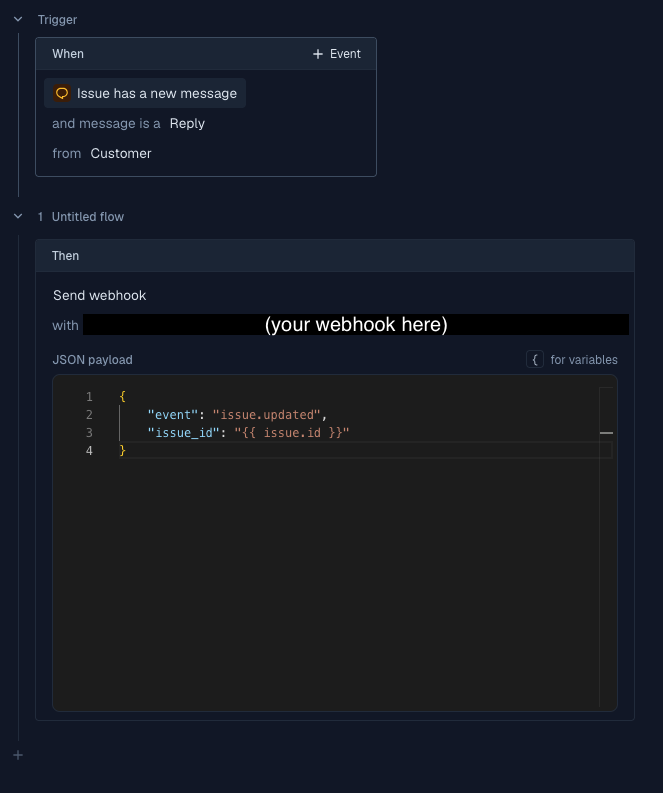
Create a trigger in Pylon:
- When: Issue has a new message and message is a reply from customer
- Then: Send webhook (select the webhook you created) with this payload:
-
Copy the webhook secret from Pylon and paste it into the Webhooks section of the Pylon integration settings in Decimal.
