

What It Does
- Queries Log Analytics tables with KQL to find relevant log entries
- Filters logs by time range, table, and severity
- Correlates log data with ticket context for root cause analysis
Setting Up Azure
Decimal connects with an Entra ID (Azure AD) service principal that has read-only access to your Log Analytics workspace. Set it up in the Azure portal, then collect four values for the connect form:- Register an app using Microsoft’s app registration guide. From the app’s Overview page, note the Directory (tenant) ID and Application (client) ID.
- Add a client secret using the same guide’s add-credentials steps. Copy the secret Value right away: it shows only once, and it’s a different field from the Secret ID.
- Assign the app the Log Analytics Reader role on your workspace, following Microsoft’s manage access guide (Access control (IAM) → Add role assignment).
- Get the Workspace ID from the workspace Overview page. It’s the Workspace ID (Customer ID), a GUID, not the workspace name or resource ID.
Connecting Azure Log Analytics
- Open Integrations: go to Settings → Integrations.
- Click Azure Log Analytics: click the Azure Log Analytics row to open the configuration modal.
- Enter your credentials: the four values from the Azure setup map to the four fields:
- Tenant ID: the Directory (tenant) ID
- Client ID: the Application (client) ID
- Client Secret: the client secret value
- Workspace ID (Customer ID): the workspace GUID
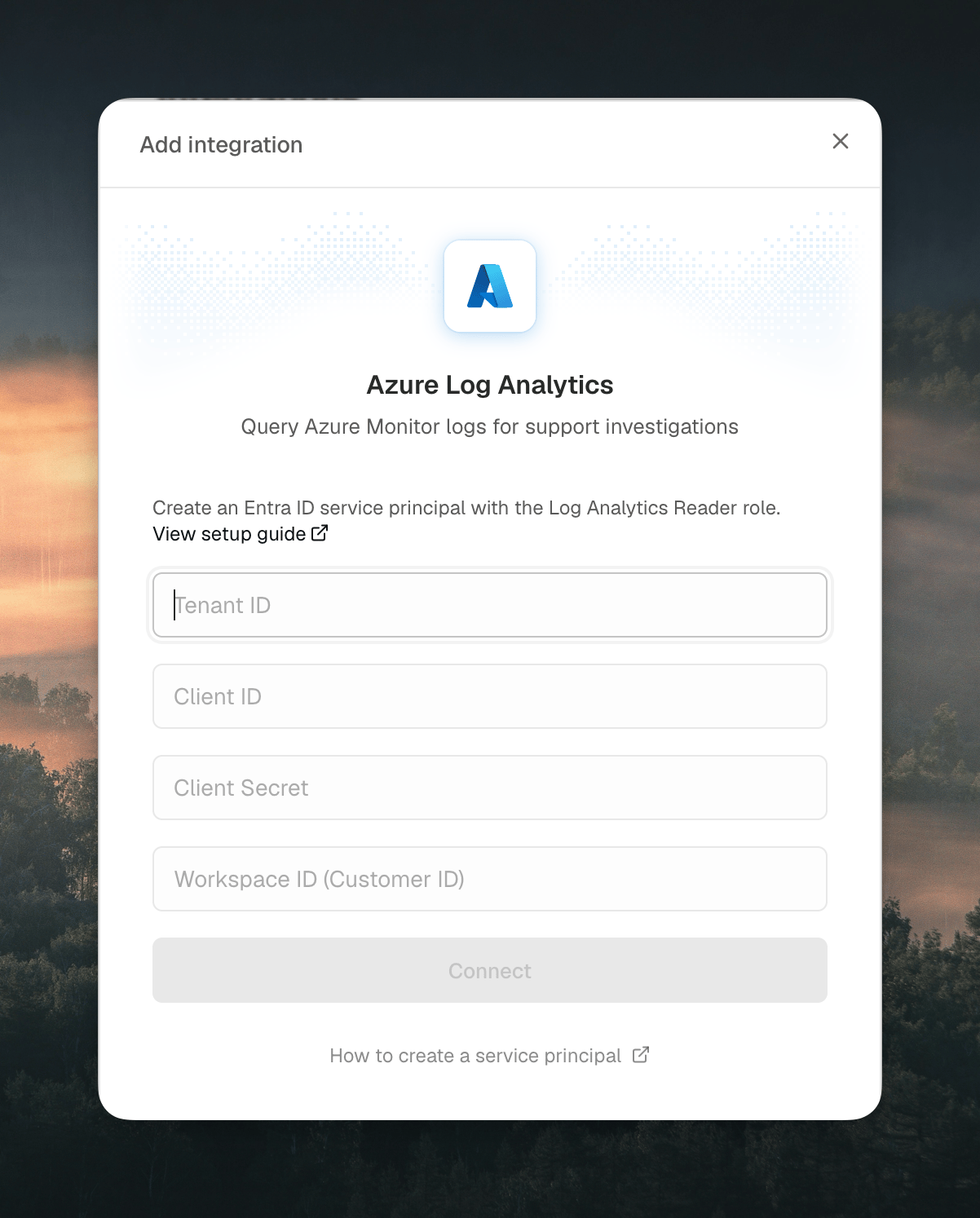
- Connect: click Connect. Decimal validates the credentials against your workspace and lists the tables the agent can query. Wrong credentials return an error and nothing is stored.