

Routing categories appear once the public agent is turned on. Without a public agent there is nothing to route between.
Once you have two agents, every ticket needs an answer to one question: who takes this one? Routing categories are how you answer it in advance, in your own words, for the kinds of tickets you actually get.
A category is a description of a recurring kind of ticket, plus a decision about how it should be handled. “Password reset requests go to the public agent, live.” “Anything about billing goes to a human.” “Bug reports get drafted by both agents, and we’ll see which answer is better.”
Open Settings, select Support Agent under Agents, then Tickets. Routing categories sits below the skip rules. Search the list, filter it by Routes or Status, and sort by any column.
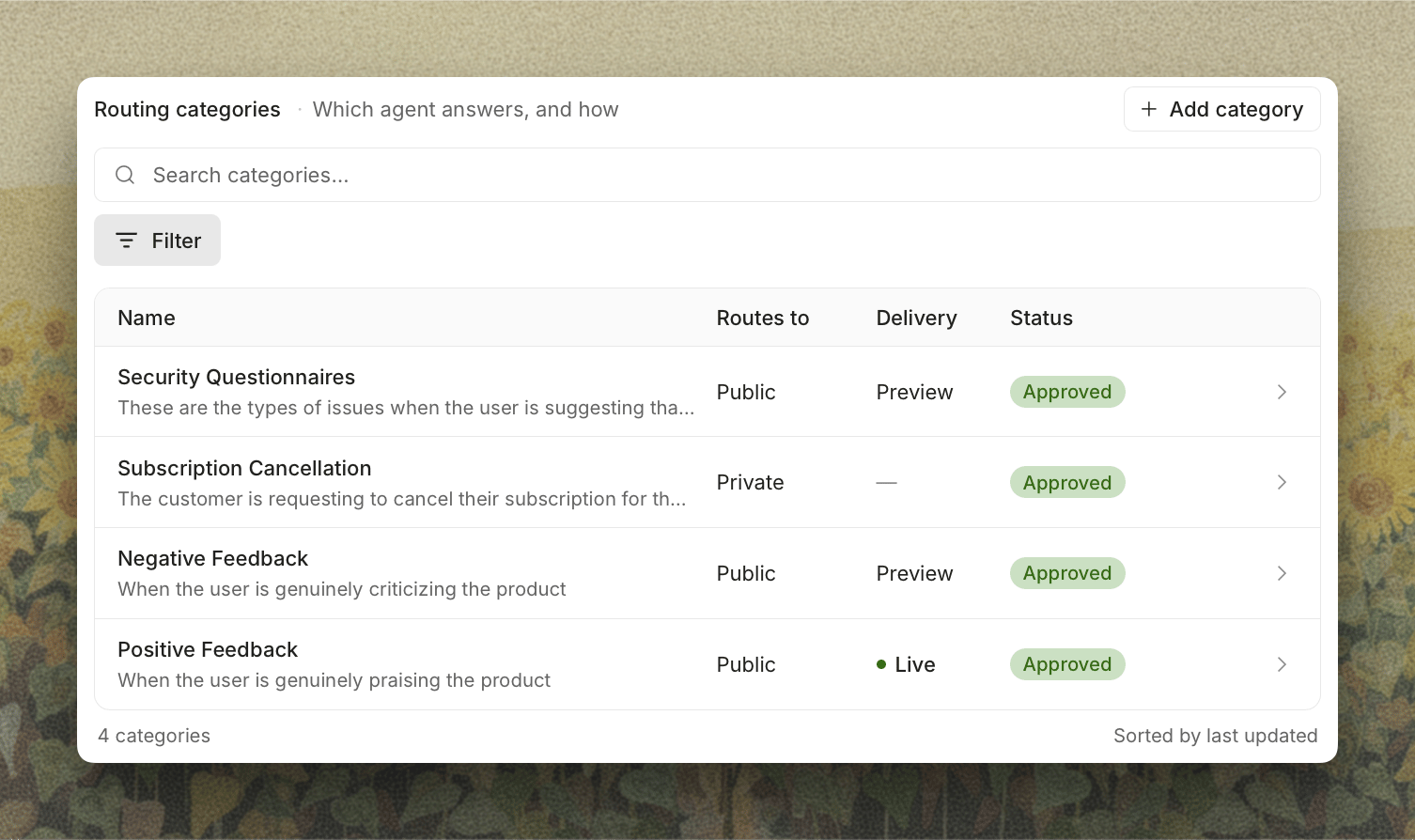
How a Ticket Gets Routed
Routing runs on every turn of a conversation, not just when the ticket arrives. A thread that started simple can stop being simple, and the routing follows it.- The router reads the thread and matches it against your approved categories. It judges the ticket on what the customer needs right now, not on the tone or the length of the message.
- The matched category sets the starting point. A category that routes to the public agent starts the ticket there.
- The router can add oversight, never remove it. From that starting point it asks whether this particular conversation has gone somewhere that needs more human involvement: an answer that didn’t land, a question asked twice, a request that now turns on a decision only your team can make. It can move a ticket from public to both, or from either to private. It can never move a ticket the other way, so a category that routes to your team stays with your team.
- The agents run. Which ones depends on the decision.
- When both ran, a comparison step picks the winner. It reads both drafts and asks whether the private agent found something the public agent could not. If it did, the ticket stays internal.
- The reply is delivered according to the delivery settings and the category’s response delay.
Where a Category Can Route
Routes to is the core setting on a category. It has three values.Creating a Category
Click Add category to open the editor.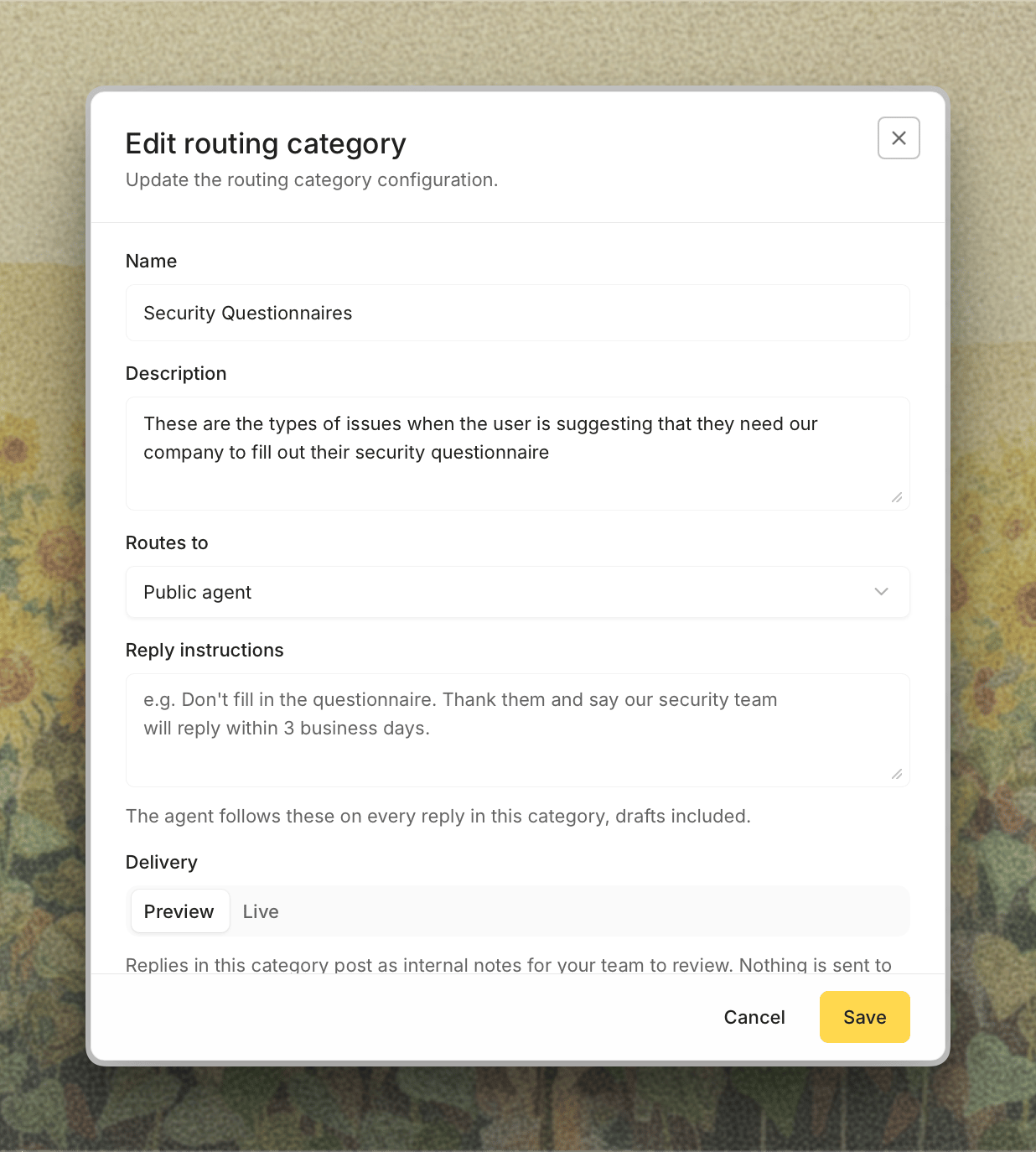
Name and Description
Write the Name the way your team would say it out loud: “Billing refund request”, “SSO setup question”. The Description is where you say when the category applies. Be concrete about the boundary, because that is what the router leans on when a ticket sits between two categories.Reply Instructions
Tell the agents how to handle tickets in this category, in up to 1,000 characters: “Don’t fill in the questionnaire. Thank them and say our security team will reply within 3 business days.” Both agents follow these on every reply in the category, drafts included, and the verifier and guardrails check replies against them. They never override the agents’ safety and citation rules.Example Tickets
Pick real tickets from your own history that belong in this category. They are not used for matching at runtime. They are fed to the model when it writes the AI definition below, and a handful of real examples does more for accuracy than another paragraph of description.Generated Category Definition
Click Generate and Decimal expands what you wrote into the fuller definition the router actually reads: a classification description, guidance, and a set of example phrasings. You can open it, edit any part of it by hand, and save. If you later change the name, description, or example tickets, the definition is marked Out of date and the button becomes Regenerate. Regenerating overwrites manual edits, so Decimal asks you to confirm when it would. A category cannot be saved or approved until this definition has been generated.Status
Only approved categories with a generated definition are used for routing. You can approve a category from the list with the checkmark, or from the editor.
cc on Email Replies
On Plain and Pylon email tickets, a category that can reply to customers can also cc up to five addresses on that reply, such assecurity@acme.com. On Plain, Include the customer’s attachments forwards whatever the customer attached to the cc’d addresses too. The cc applies only to replies that actually reach the customer, not to Preview notes.
Sending Private Agent Replies
If your workspace has private agent replies to customers, categories that route to the Private agent or Both agents get a Send private agent replies to customers switch. It only has an effect when Eligible tickets on the Replies tab is set to By routing category, and the editor warns you when it isn’t. Turning it on also gives the category the Delivery and Response delay settings below.Delivery: Preview and Live
Categories that route to the public agent (Public agent or Both agents) get a Delivery setting. This is the safety valve for each kind of ticket.- Preview (the default for every new category): the public agent does the full job, and its answer posts to the ticket as an internal note. Nothing reaches the customer. This is sometimes called shadow mode.
- Live: the answer is sent to the customer.
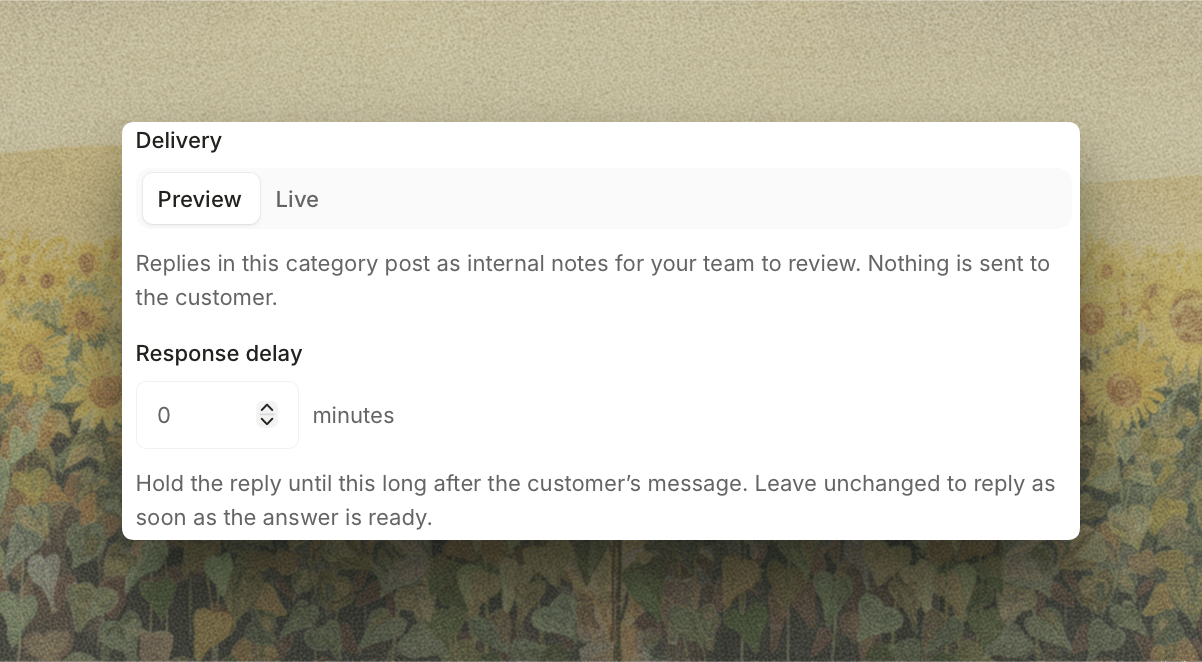
Every category starts in Preview on purpose. Leave it there through a full cycle of real traffic, read the notes it produces, and promote one category at a time. Preview is the only way to see how a category behaves on tickets you didn’t think of when you wrote it.
Live is permission to send, not a guarantee. A category set to Live still produces an internal note instead of a customer reply when the verifier blocks the answer, when a teammate has already replied, or when the router or comparison step moves the ticket to the private agent.
Response Delay
An answer that lands a second after the customer hits send reads as a machine, however good the answer is. No person types that fast, and customers notice. Response delay holds the reply for a set number of minutes so it arrives at a pace a teammate could plausibly have worked at. Set it up to 60 minutes, or leave it empty to reply as soon as the answer is ready. The details worth knowing:- The clock starts at the customer’s most recent message, not at the moment the agent finished working. A five minute delay on an answer that took four minutes to produce sends one minute later, not five.
- If the delay has already passed by the time the answer is ready, the reply goes out immediately.
- If the customer writes again during the delay, the pending reply is dropped. The agent reprocesses the thread including the new message and answers the whole thing, rather than sending a reply to a question the customer has already moved past.
- The delay applies in Preview too. It holds the turn, so the internal note also waits.
When No Category Matches
The router returns no category when nothing in your list describes the ticket. What happens next depends on your workspace. An uncategorized ticket goes to both agents and the comparison step decides. By default, the private agent’s draft wins and the ticket stays with your team. To let the public agent answer some of these, turn on Reply to tickets with no category under Public agent replies to customers on the Replies tab. The public reply is then used only when the comparison step finds the two agents gave the same answer, meaning the private agent found nothing the public one couldn’t. Daily limit for these replies, right below it, caps how many uncategorized tickets can receive a public reply in a rolling 24 hour window. It defaults to 30. Tickets in approved categories are not counted against it, so the limit constrains only the tickets you never wrote a rule for. Once the cap is reached, uncategorized tickets fall back to your team until the window rolls forward. Raise it as your categories get better and your confidence grows. Leave Reply to tickets with no category off if you want the public agent to answer only tickets you have explicitly described.What Overrides a Category
A category states an intent. Several things can still pull a ticket toward more human involvement, and none of them can push it the other way.A Suggested Rollout
- Start with your three most repetitive ticket types. Look at what your team answers with near-identical wording every week. Those are the categories worth writing first.
- Choose a routing target for each one. Public agent runs the public agent alone, which is the direct choice when you already know the answer lives in your documentation. Both agents runs both and shows you which draft the comparison step preferred. Either way, leave the category in Preview to start.
- Read the previews for a week. You are checking one thing: would you have sent that?
- Switch the categories you trust to Live. One at a time.
- Add a response delay on the categories where an instant reply would feel out of place.
- Write private categories for the things you never want automated. Billing disputes, security reports, anything with a contractual edge. A category that routes to the private agent is a rule the router cannot talk itself out of.
- Consider replying to uncategorized tickets once your categories cover most of your volume, starting with a low daily limit.