

This feature is enabled per workspace. Email us to turn it on.
A policy is the procedure you’d hand a new teammate for one kind of request. Ask for the order number. Always mention the 30 day window. Refund under 30 days, store credit up to 60, decline past that. Write that once in Policies and the Chat Widget agent follows it step by step whenever a customer opens that subject, in the widget or through the Chat API.
Without a policy the agent answers from your knowledge base and picks its own way through the conversation. That’s right for “how do I export a report”. Refunds and cancellations are different: the wording and the order of the questions are the process, and you want them the same every time.
Open Configuration → Policies.
Only organization administrators can open Policies.
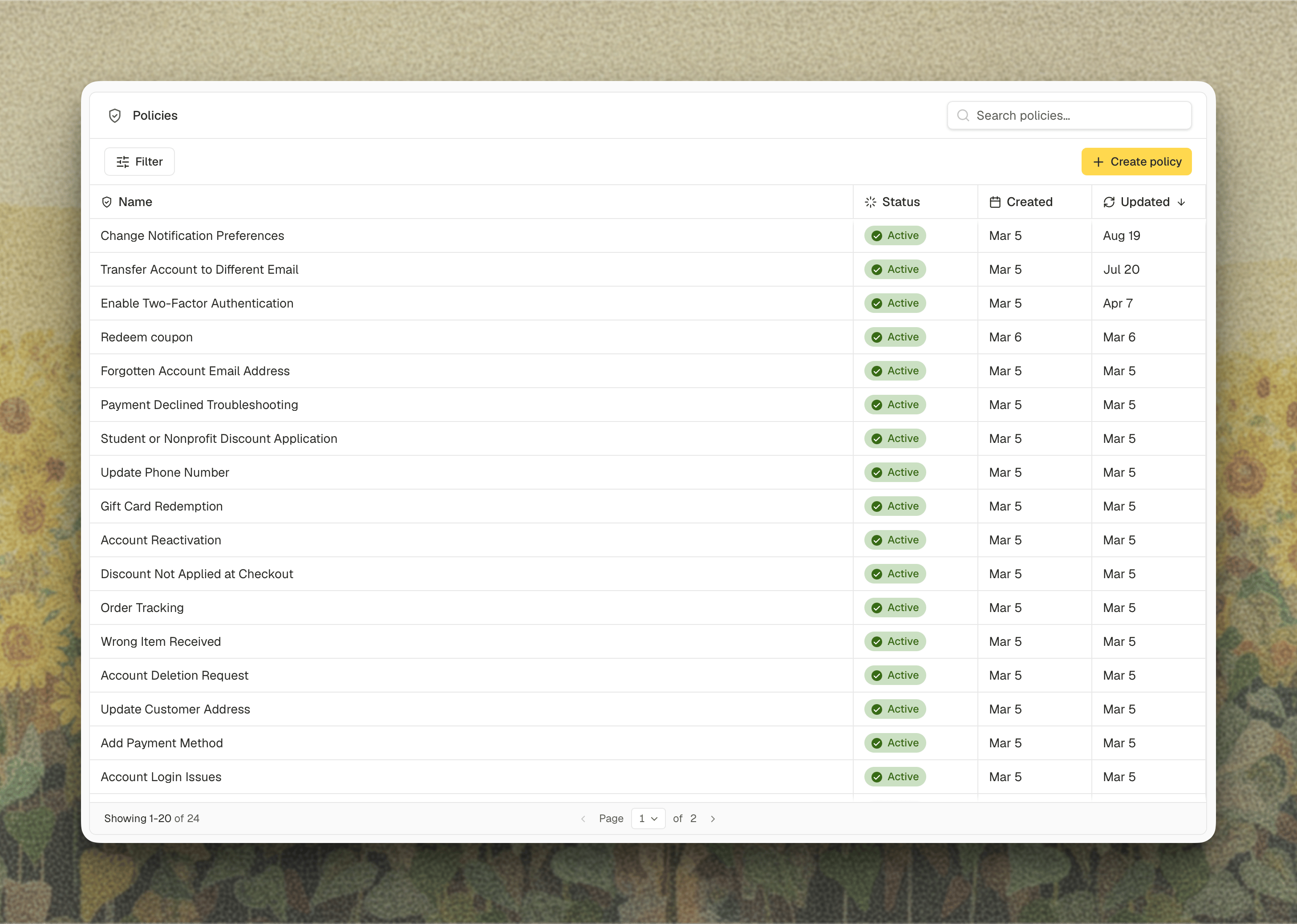
Creating a Policy
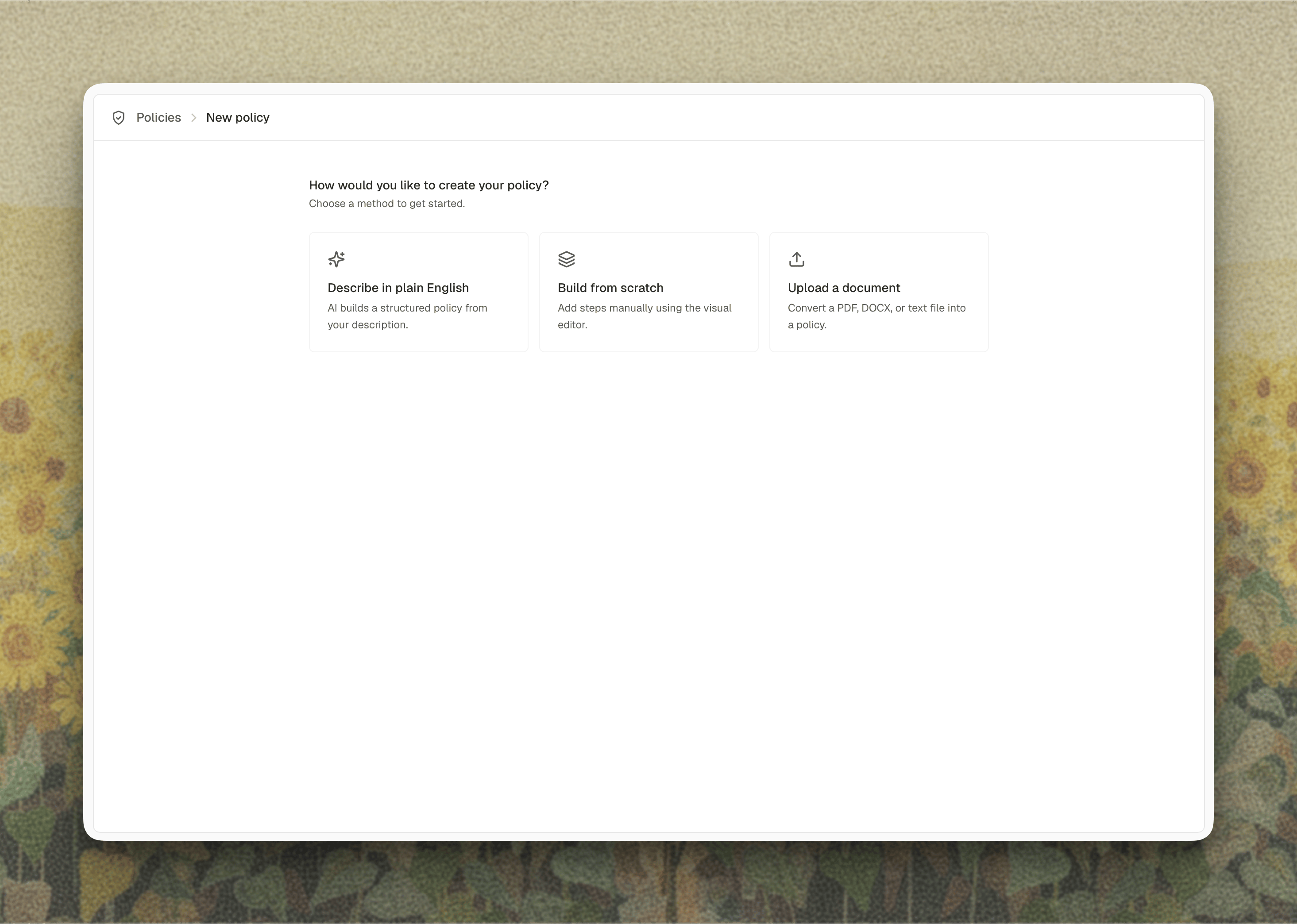
Click Create policy and pick where to start:- Describe in plain English: type what should happen and Decimal drafts the steps for you to edit. Write it the way you’d brief a teammate, branches included: “if the item arrived damaged, refund it whatever the order age”.
- Build from scratch: an empty editor, for when you already know the shape.
- Upload a document: drop in the SOP you already wrote. PDF, DOCX, TXT, and MD, up to 10 MB.
Steps
A step is one instruction. Its type sets how the agent reads it.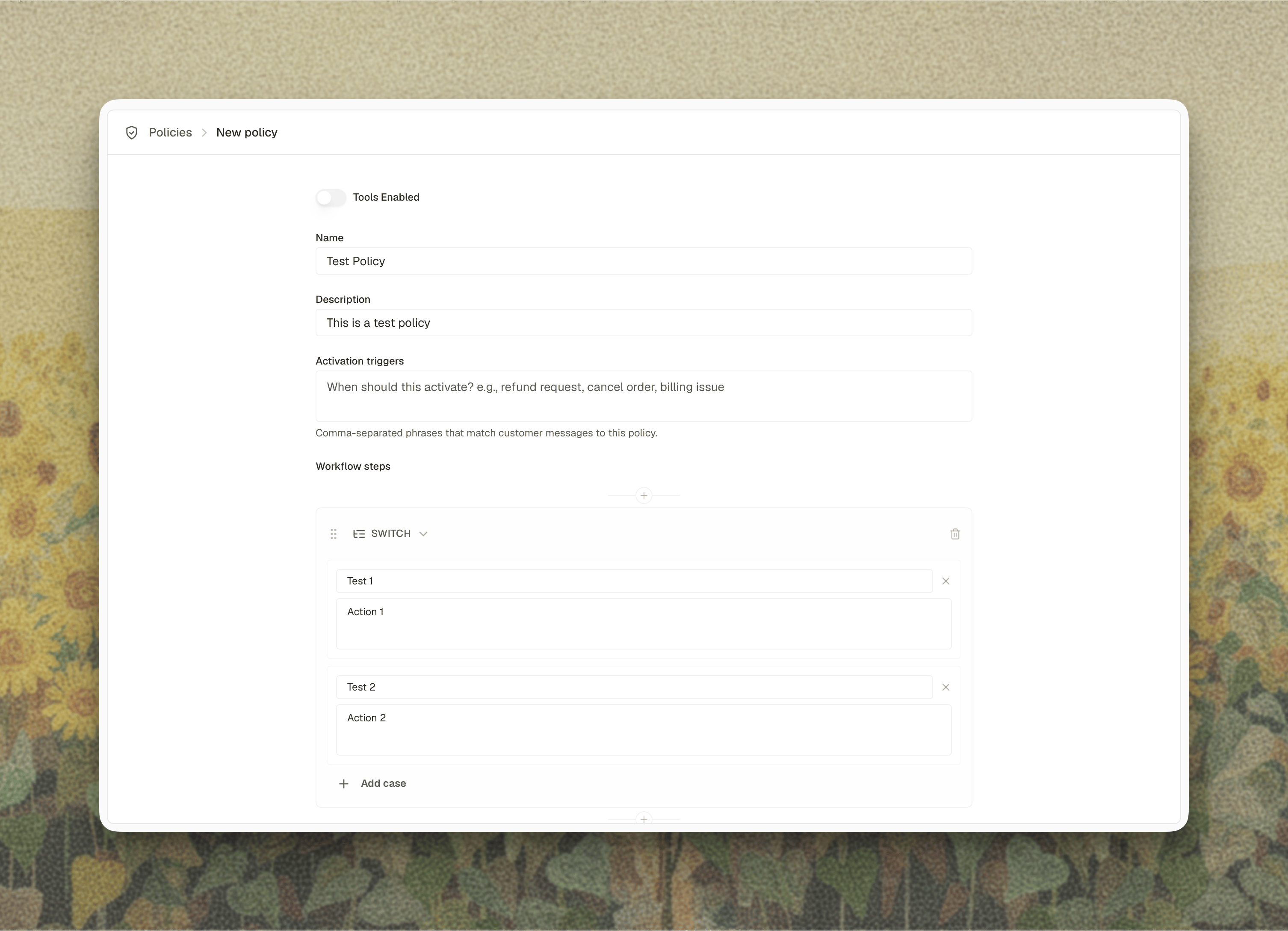
Writing Steps the Agent Can Follow
Collapse a run of conditions into one Switch when only one of them can be true. Under 30 days, 31 to 60, over 60: that’s one Switch with three cases, not three Condition steps. Keep each condition to a short label of a few words, the way you’d tab a folder. “Order over 60 days”. “Damaged on arrival”. What to do about it goes in the step’s content, never in the condition. Customers never see condition text, and the agent won’t repeat it back to them. Then cut. A handful of steps that each carry a real decision beat a long list of small ones. Drag the handle on a step to reorder, and read the result top to bottom: that’s the order the agent works in.Triggers and Matching
Triggers are comma-separated phrases in your customers’ words, not your internal ones:refund, money back, return, cancel my order.
Decimal reads each conversation against the triggers, description, and steps of every active policy, and applies one only when the match is clear. When nothing matches clearly, the agent answers as it normally would.
That check runs on every message, so a chat that opens with “hi, quick question” picks the policy up two messages later once the customer says what they want. One policy applies at a time. Keep policy scopes apart: when two policies could both cover the same request the match gets less certain, and an uncertain match means neither is applied.
To see whether a policy fired, open Conversations. A policy icon sits beside the title of every conversation where one applied, and hovering it names the policy. The Policy filter narrows the list to conversations with or without one.
Tools
Tools, on the policy’s page, decides whether the agent may search your knowledge base while following the policy. Off, the agent works from the policy text alone and cites nothing. On, it can look articles up and cite them in the reply, and a Search Knowledge Base step starts working. Either way a policy conversation stays out of your connected code repositories, which a normal widget conversation can search.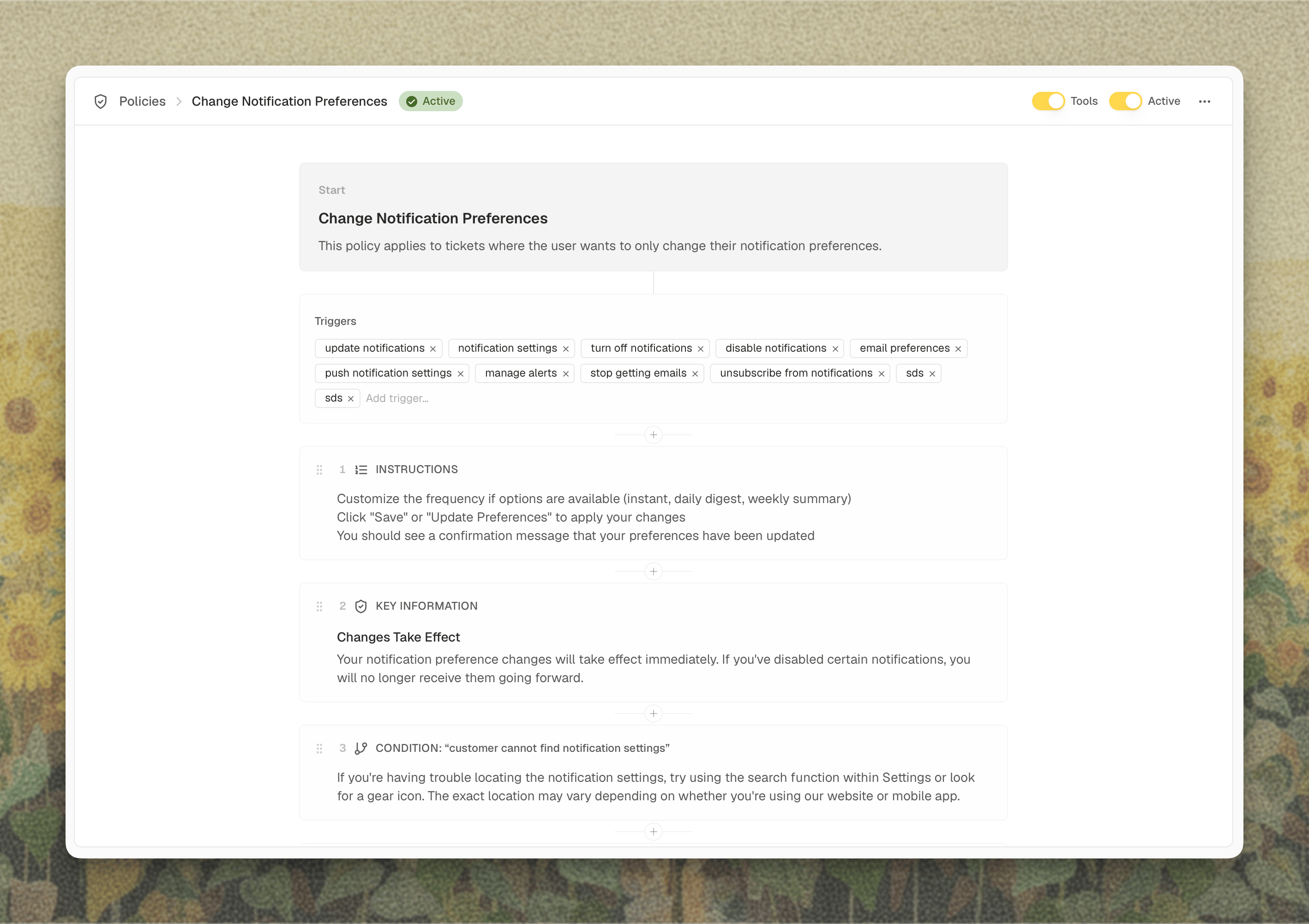
Escalating from a Policy
An Escalate step hands the conversation to your team through the widget’s escalation integration. The agent collects what the step asks for, opens the escalation form, and the ticket is created for you. Configure escalation on the widget first, under Escalation in its configuration. Without it the agent still gathers the information and tells the customer someone will follow up, but no ticket is created. The agent stays the support agent throughout. It won’t tell the customer it’s passing them to a human, point them at a support email, or say their case is an exception.Turning a Policy On and Off
A new policy goes live the moment you create it. Switch Active off on its page to park it while you keep working, and it stays out of every conversation until you switch it back. Edits save as you type, confirmed by an Auto-saved toast. There’s no publish step: the next customer message uses what you just changed, including in a conversation already underway.Delete policy, in the ⋯ menu, can’t be undone.