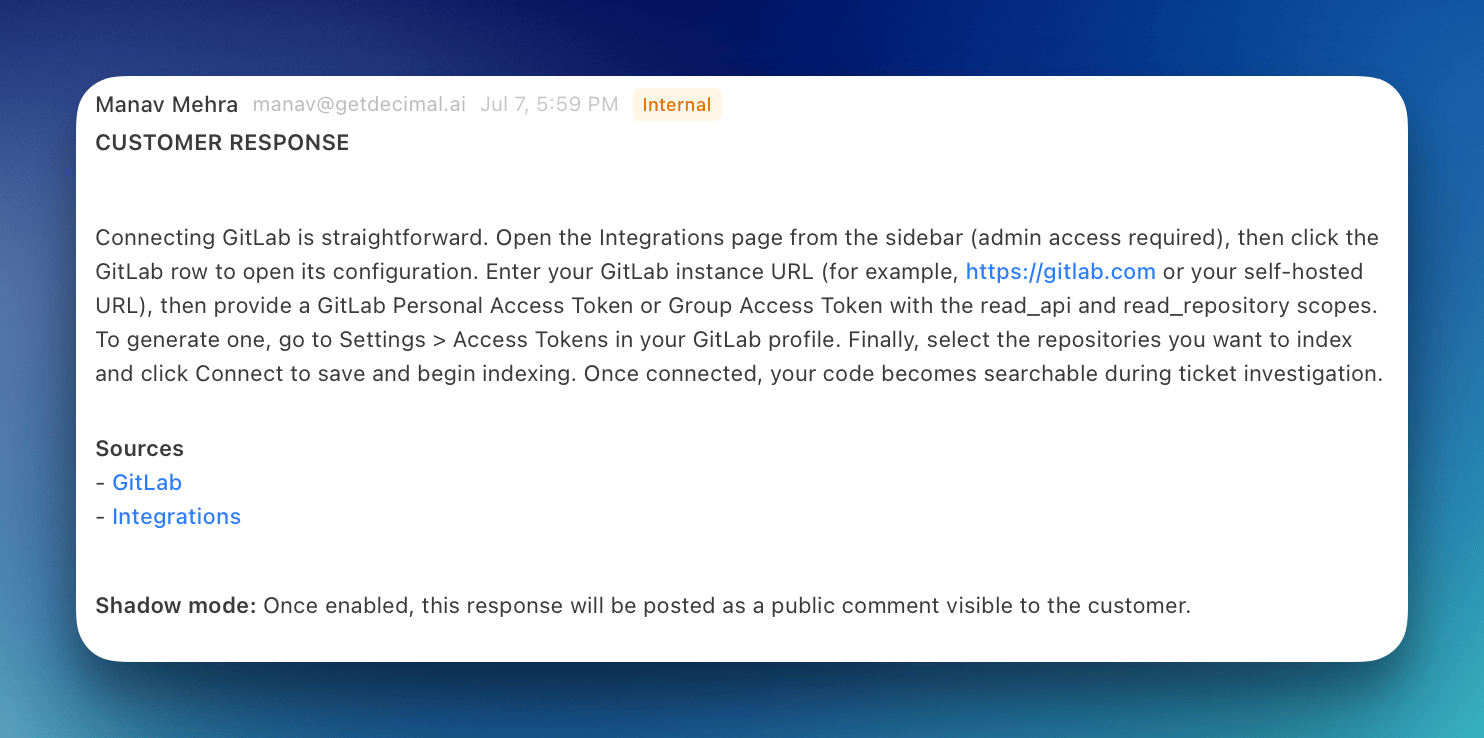
This feature is enabled per workspace. Email us to turn it on. A Contact support button where the toggle should be means it isn’t on yet.
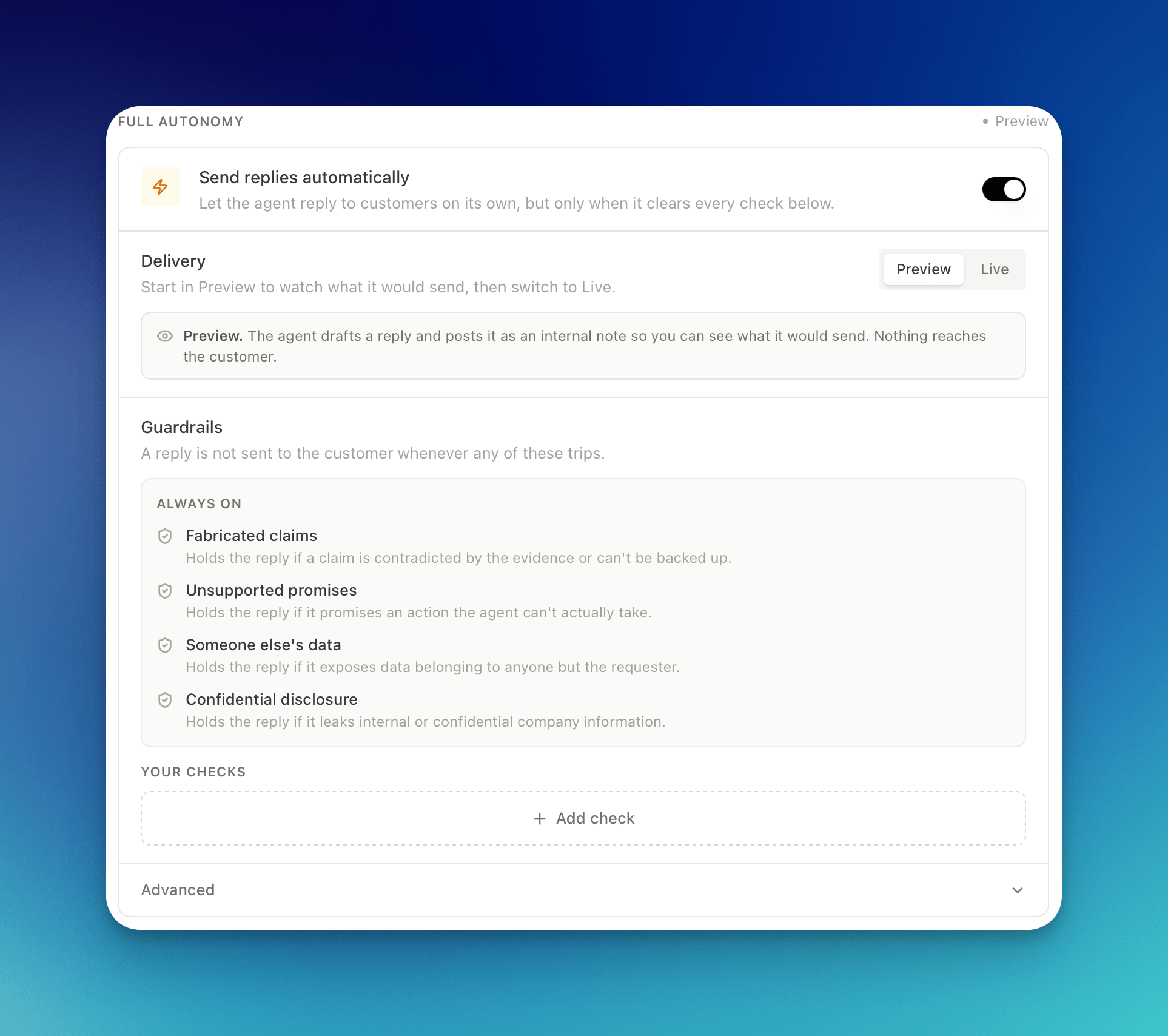
You control how far to take it, from watching what the agent would send to letting it reply live. Nothing goes out until it clears every check.
Full Autonomy is about the private agent’s drafts, the ones built from everything you’ve connected. If you’re looking for the separate agent that answers customers from your public documentation alone, that’s the public agent. The two work independently, and Public Agent vs Full Autonomy lays out the difference.
What It Does
- Sends replies automatically: posts the agent’s drafted reply to the customer when it clears every check, with no one in the loop
- Checks every reply first: an independent verifier reviews each reply and holds back anything unsafe before it reaches the customer
- Runs your guardrails: enforces conditions you write yourself, on top of the always-on safety checks
- Stands down for humans: if a teammate has already replied on a ticket, the agent won’t send
- Starts in Preview: drafts replies as internal notes so you can see what it would send before it sends anything for real
Preview vs Live
Full Autonomy has two delivery modes. Switch between them with the Delivery control.- Preview (default): the agent drafts a reply and posts it as an internal note on the ticket, so you can see exactly what it would send. Nothing reaches the customer.
- Live: the agent sends its own replies to customers whenever every check passes. You won’t review them first.
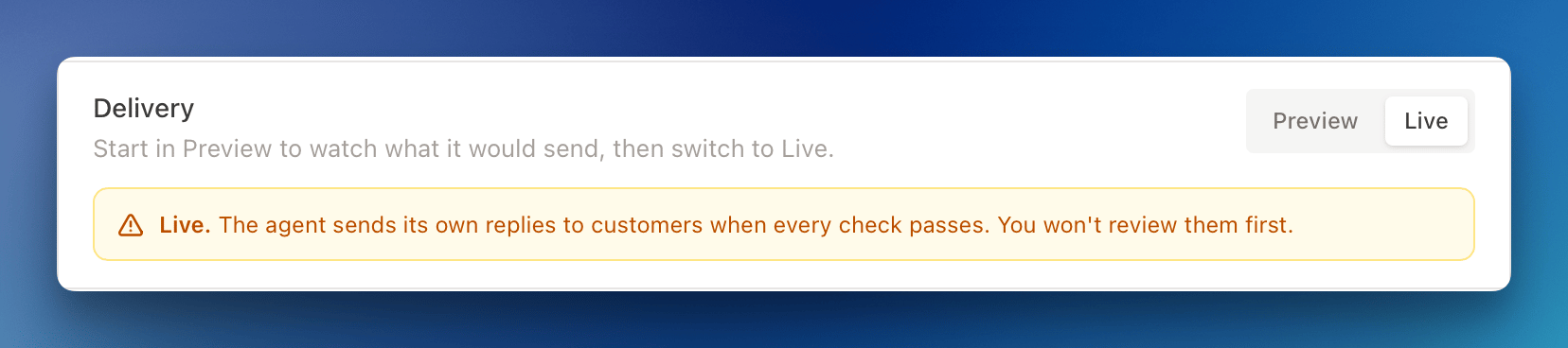
Start in Preview. Let the agent draft against real tickets for a while and read what it would have sent. Once the drafts look right, switch Delivery to Live.
Guardrails
A reply is never sent to the customer if any guardrail trips.Always On
These safety checks apply to every reply and can’t be turned off:Your Checks
Write your own conditions as sentences. For example, “the reply approves a refund over $500” or “the reply commits to a specific delivery date.” Each check has a name and a Block auto-send when… condition. You can add up to 20.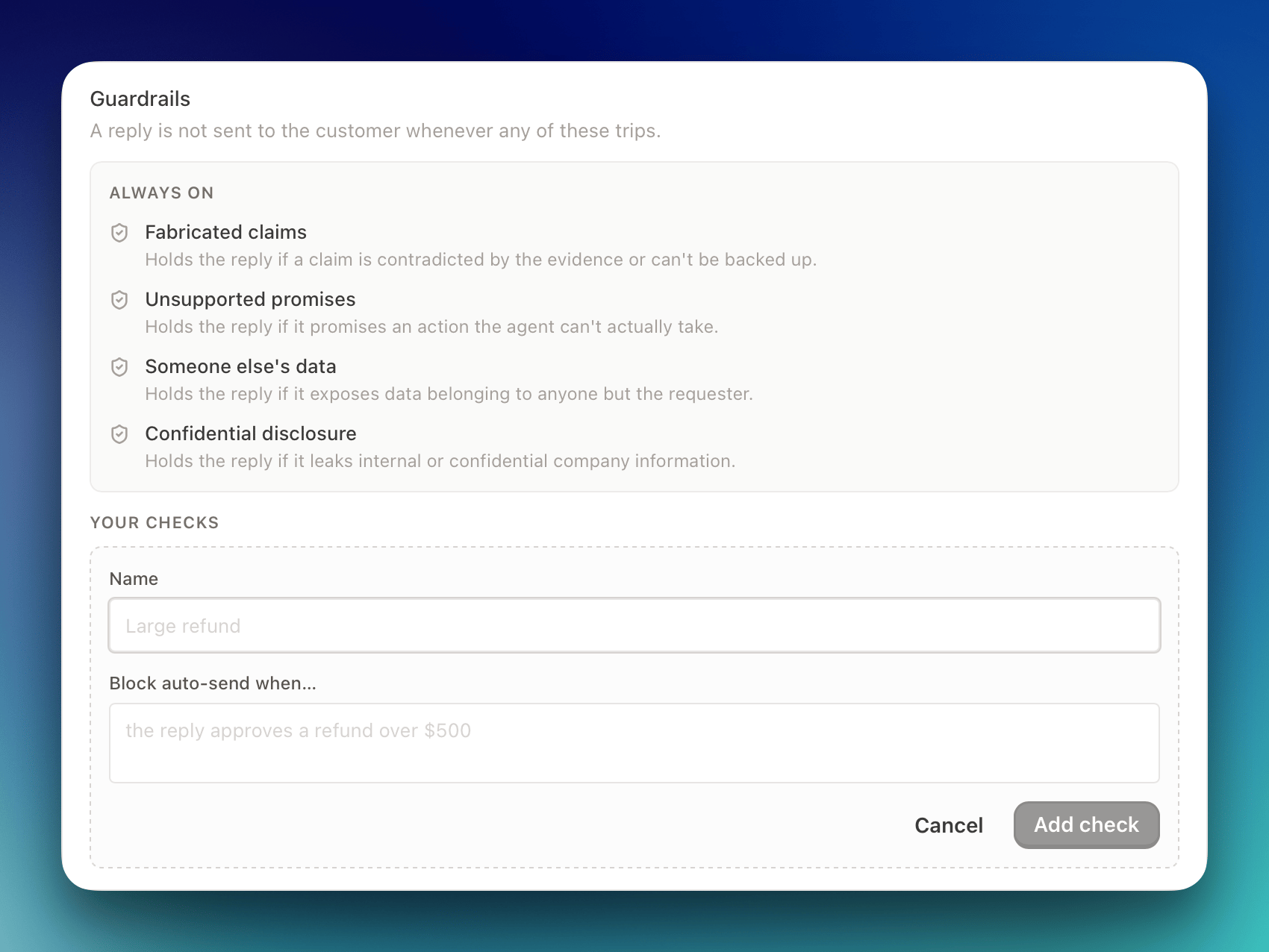
Confidence Threshold
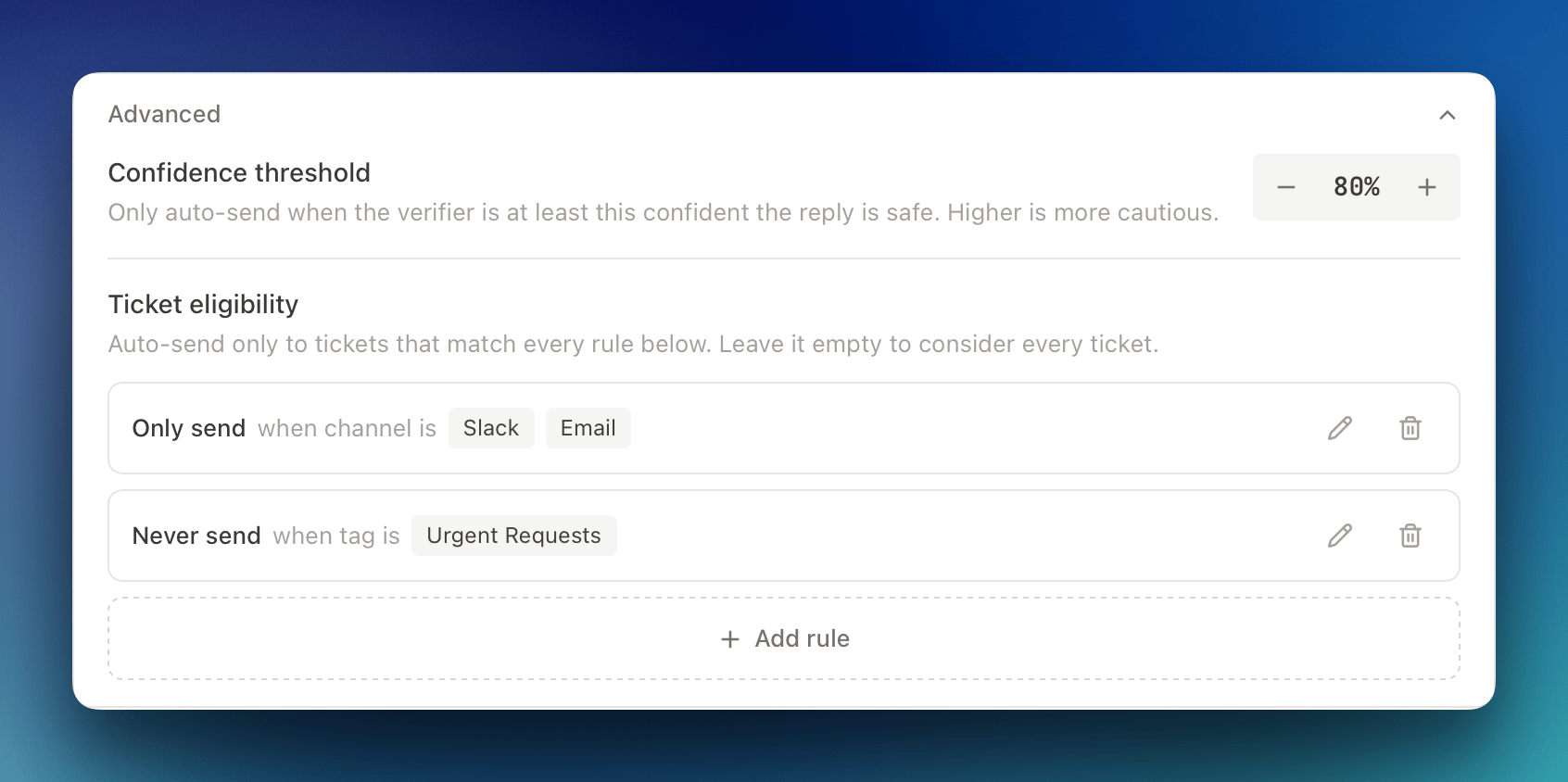
Beyond the pass/fail guardrails, the verifier scores how confident it is that a reply is safe and complete. Full Autonomy only sends when that confidence is at or above your confidence threshold, which is 80% by default. Raise it to be more cautious. You’ll find it under Advanced.Ticket Eligibility
By default, every ticket is eligible for auto-send. Under Advanced, you can narrow that with Only send and Never send rules by channel or tag. For instance, only auto-send tickets from a specific channel, or never auto-send anything taggedvip. Leave it empty to consider every ticket.
Turning On Full Autonomy
- Open the Replies tab: Go to Agents, select Support Agent, and open the Replies tab.
- Turn on Send replies automatically: Full Autonomy starts in Preview, so the agent drafts replies but sends nothing to customers.
- Review your guardrails: Check the always-on list and add any of your checks for your team’s policies.
- Set your thresholds (optional): Under Advanced, adjust the confidence threshold and add ticket-eligibility rules.
- Watch Preview on real tickets: Read the internal-note drafts the agent posts and confirm they’re what you’d send.
- Switch to Live: When you’re confident, set Delivery to Live and the agent begins sending its own replies.
Full Autonomy needs a standalone customer reply, so while it’s on, Drafted reply stays enabled under Reply content and any notes post separately.
When a Reply Is Held Back
If any guardrail trips, or the verifier’s confidence sits below your threshold, the reply is not sent to the customer. The draft posts as an internal note instead, and the ticket waits for your team like any other. The agent also stands down when a teammate has already replied. It won’t send over a human.