> ## Documentation Index
> Fetch the complete documentation index at: https://docs.decimal.app/llms.txt
> Use this file to discover all available pages before exploring further.
# Stripe
> Connect Stripe to let Decimal's AI agent verify customers, look up payments, and issue refunds during support ticket resolution.
The Stripe integration lets Decimal's AI agent investigate payment-related tickets — verifying the customer, finding the exact payment, and issuing a refund against it.
## What It Does
* **Verifies the customer** by matching the ticket's email to a Stripe customer before touching any payment
* **Looks up payments** to identify the specific charge a ticket is about, by amount, currency, and date
* **Issues refunds** against the matched charge, either recommended for human approval or automatically within configured caps
* **Investigates billing context** for disputes, duplicate charges, and cancellations that imply a refund
## Permissions Decimal Requests
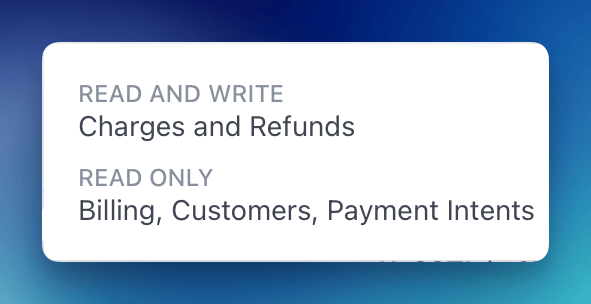
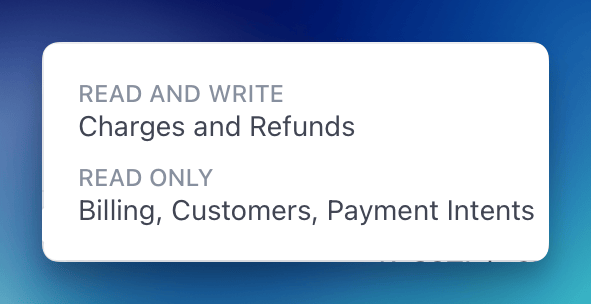
Decimal connects with a Stripe **restricted key**. When you create the key, grant exactly these permissions and nothing more:
| Permission | Access | Why Decimal needs it |
| ----------------------- | -------------- | -------------------------------------------------------------------------------------------------------------------------------------------- |
| **Charges and Refunds** | Read and write | Refunds are created against the original charge — write access here is what lets the agent issue refunds and is required to enable Live mode |
| **Customers** | Read only | Match the ticket's customer to a Stripe customer by email before any payment is read or refunded |
| **Payment Intents** | Read only | Find the customer's payments and resolve the exact charge to refund |
| **Billing** | Read only | Read the invoices and subscriptions behind a charge to understand recurring-billing, dispute, and cancellation tickets |
 Decimal only accepts restricted keys (`rk_…`). Secret keys (`sk_…`) are rejected — a restricted key keeps access scoped to exactly the permissions above.
## Connecting Stripe
1. **Create a restricted key**: In your [Stripe Dashboard](https://dashboard.stripe.com/apikeys/create), create a restricted key with the permissions listed above.
2. **Navigate to Integrations**: Go to **Settings** in the sidebar, then select the **Integrations** tab.
3. **Click Stripe**: Click on the Stripe integration row to open the configuration modal.
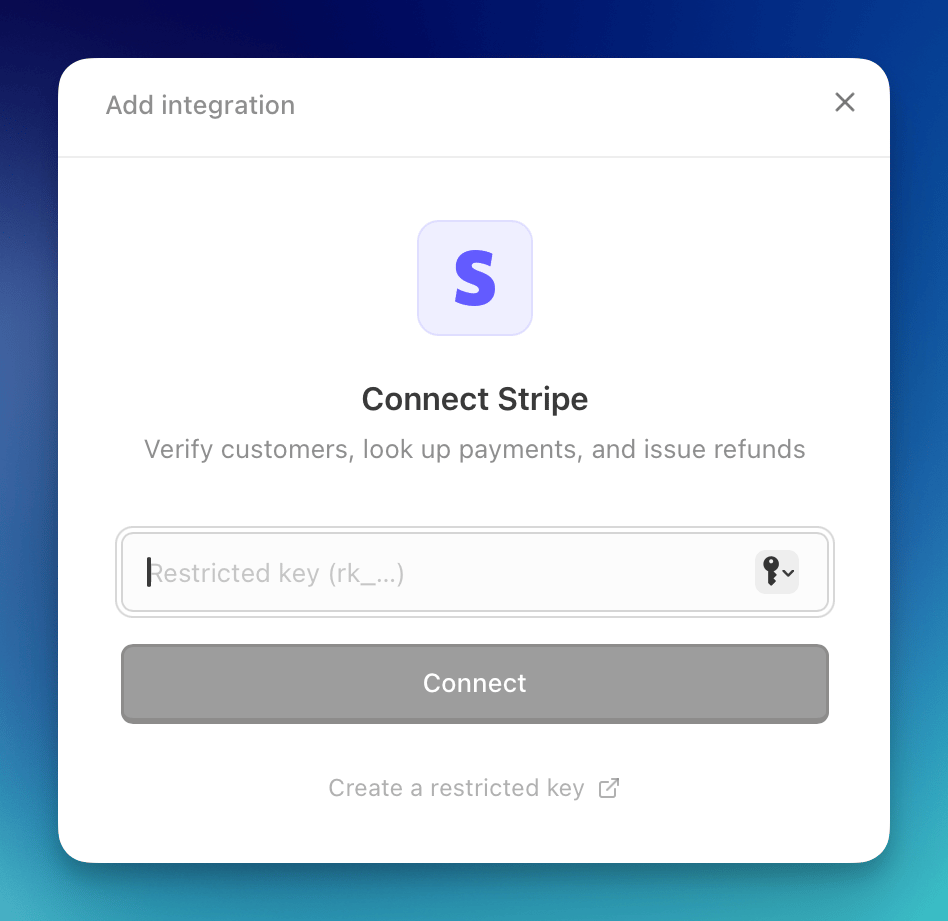
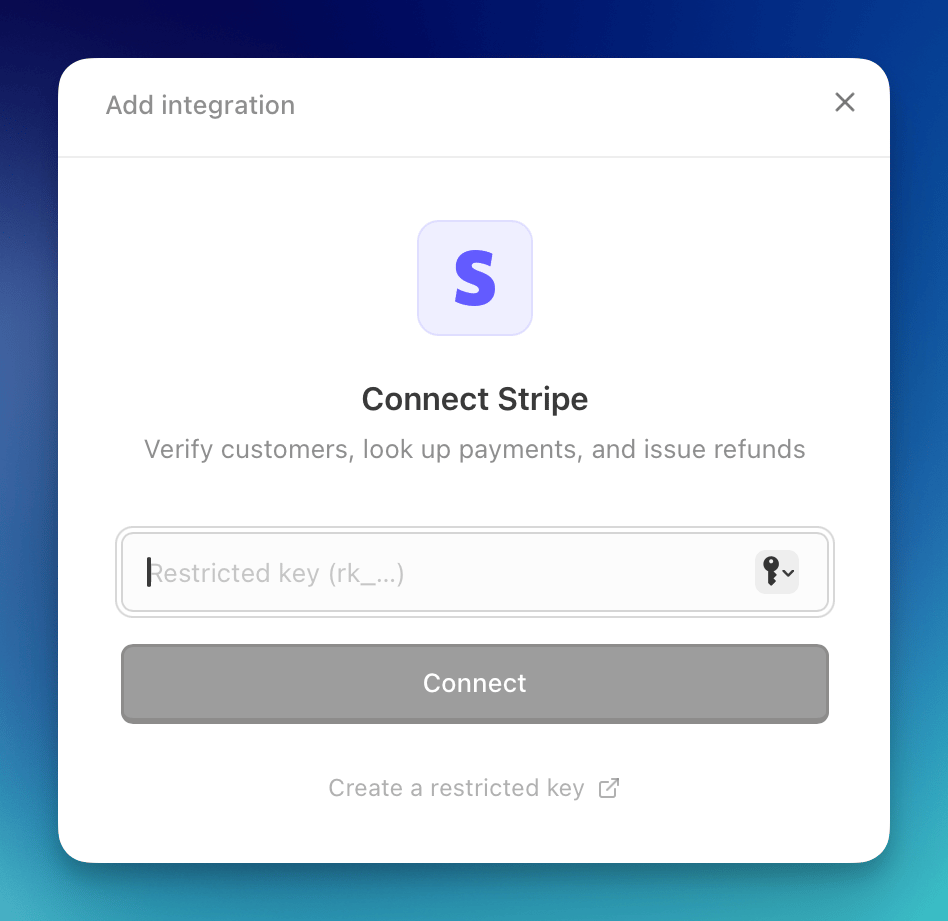
4. **Paste your restricted key**: Enter the `rk_…` key and click **Connect**.
Decimal only accepts restricted keys (`rk_…`). Secret keys (`sk_…`) are rejected — a restricted key keeps access scoped to exactly the permissions above.
## Connecting Stripe
1. **Create a restricted key**: In your [Stripe Dashboard](https://dashboard.stripe.com/apikeys/create), create a restricted key with the permissions listed above.
2. **Navigate to Integrations**: Go to **Settings** in the sidebar, then select the **Integrations** tab.
3. **Click Stripe**: Click on the Stripe integration row to open the configuration modal.
4. **Paste your restricted key**: Enter the `rk_…` key and click **Connect**.
 5. **Test permissions**: Once connected, use **Test permissions** to confirm the key has the access the agent needs. The badges show which scopes are present and whether the key is refund-capable.
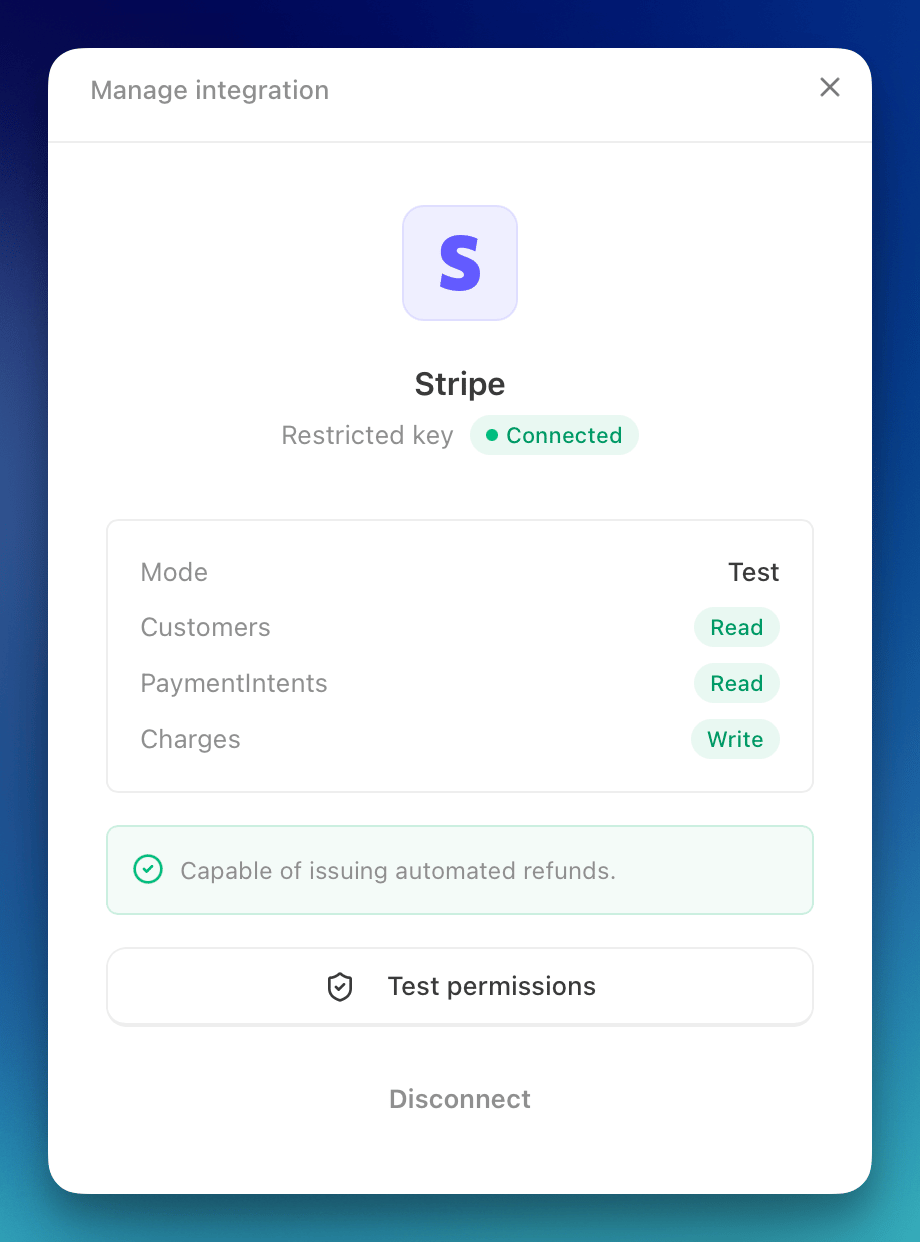
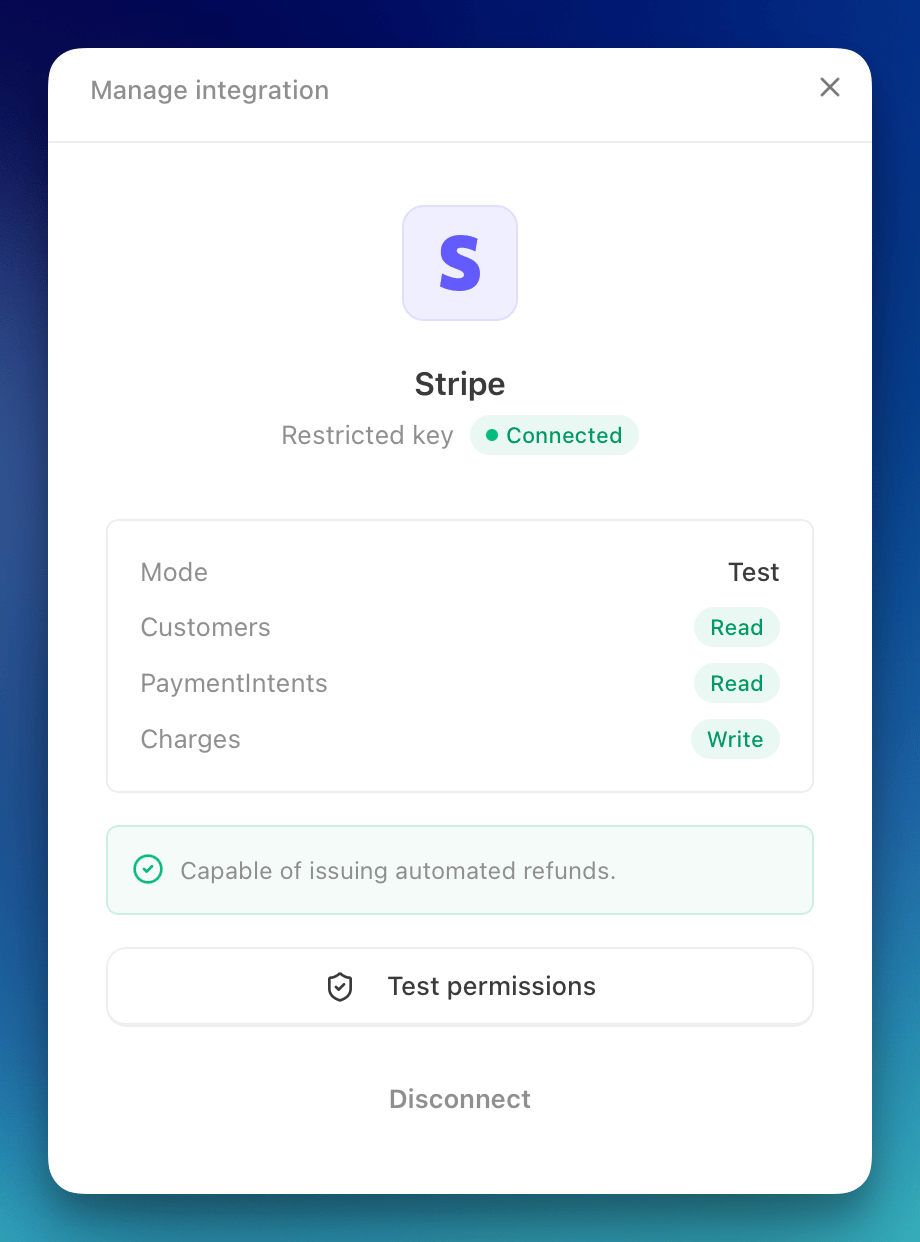 *The connected mode (Test or Live) is detected from the key. A live-mode key (`rk_live_…`) is required to refund real payments.*
## Refund Modes
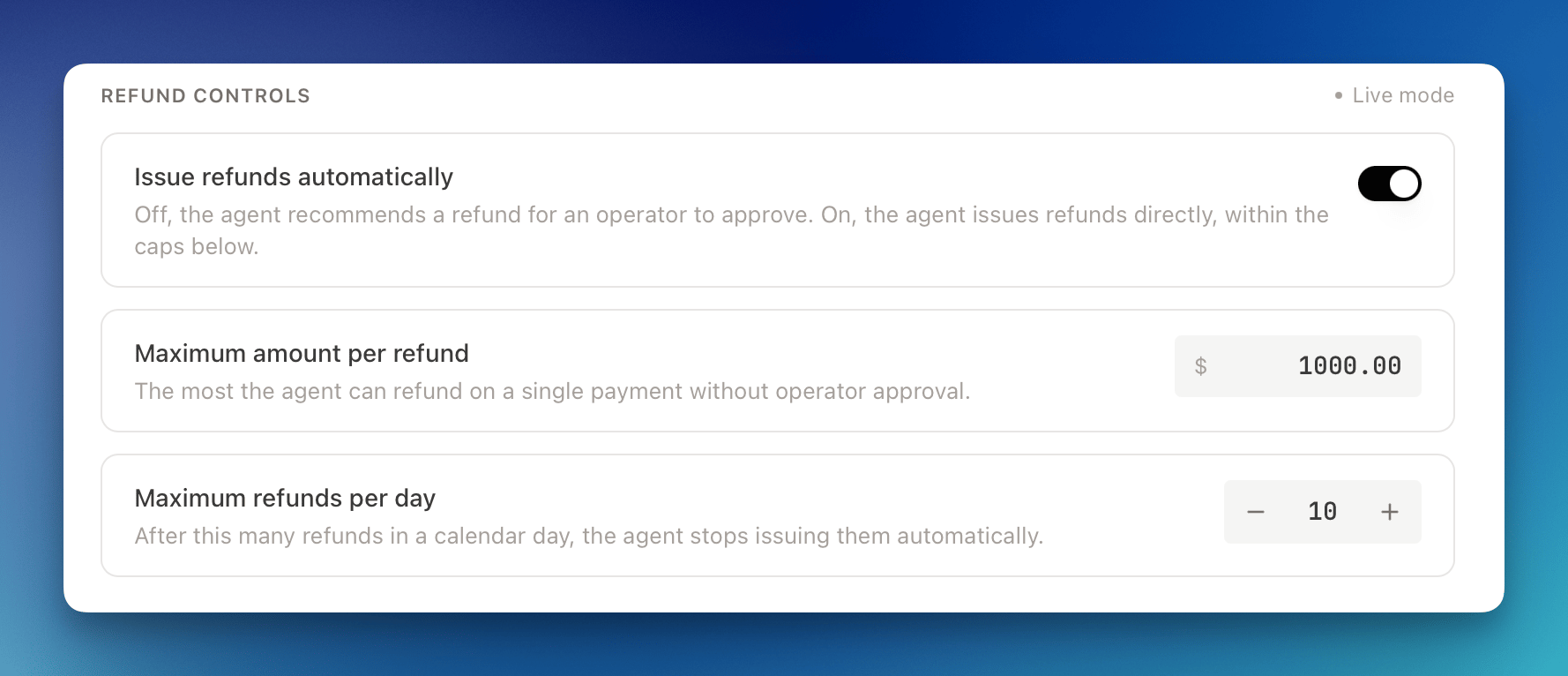
Refund behavior is configured per agent under **Refund Controls** in the support agent settings.
* **Shadow mode** (default): the agent records a refund recommendation on the ticket for an operator to approve. Nothing is charged back until a human approves it.
* **Live mode**: the agent issues refunds directly, within the caps you set:
* **Maximum amount per refund** — the most the agent can refund on a single payment without operator approval
* **Maximum refunds per day** — after this many refunds in a calendar day, the agent stops issuing them automatically
*The connected mode (Test or Live) is detected from the key. A live-mode key (`rk_live_…`) is required to refund real payments.*
## Refund Modes
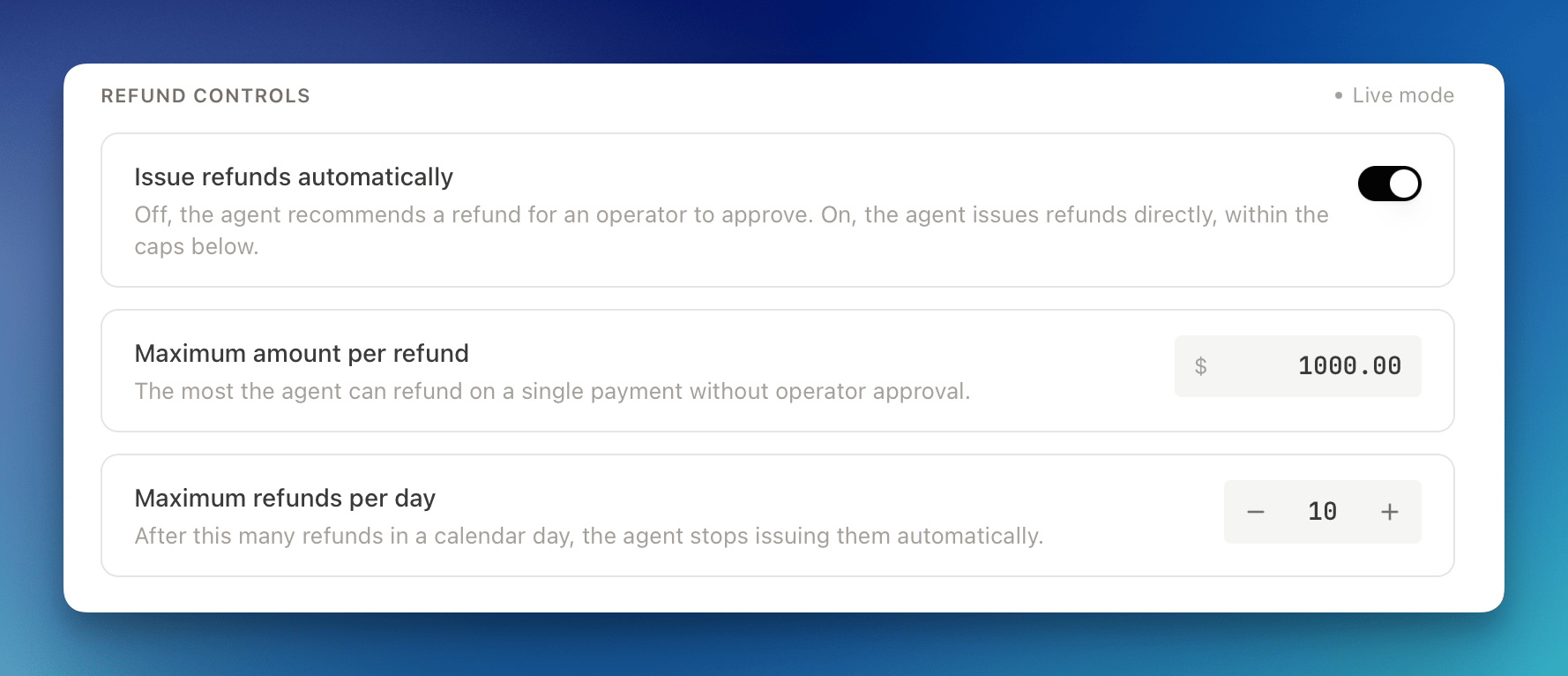
Refund behavior is configured per agent under **Refund Controls** in the support agent settings.
* **Shadow mode** (default): the agent records a refund recommendation on the ticket for an operator to approve. Nothing is charged back until a human approves it.
* **Live mode**: the agent issues refunds directly, within the caps you set:
* **Maximum amount per refund** — the most the agent can refund on a single payment without operator approval
* **Maximum refunds per day** — after this many refunds in a calendar day, the agent stops issuing them automatically
 Live mode is only available when the connected key has **Charges and Refunds: write**. A lookup-only key keeps the agent in Shadow mode.
## Approving a Refund
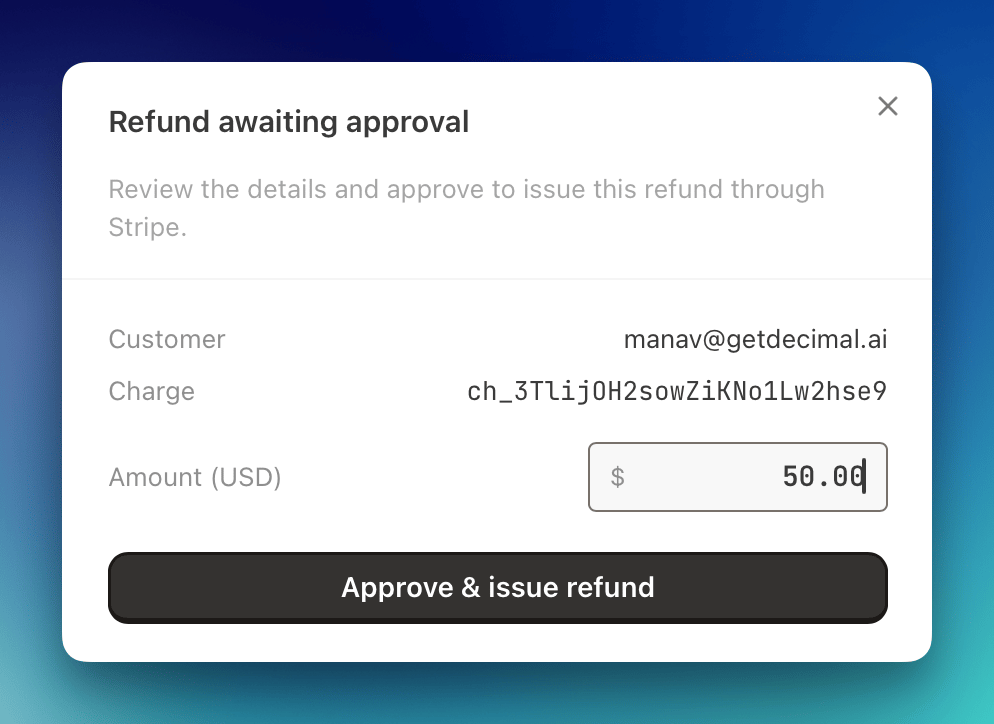
In Shadow mode, a recommended refund appears on the ticket for review. An operator confirms the amount and approves it, and Decimal issues the refund through Stripe. The agent always tells the customer their refund is **under review** — never that it has already been processed — until a human approves it.
Live mode is only available when the connected key has **Charges and Refunds: write**. A lookup-only key keeps the agent in Shadow mode.
## Approving a Refund
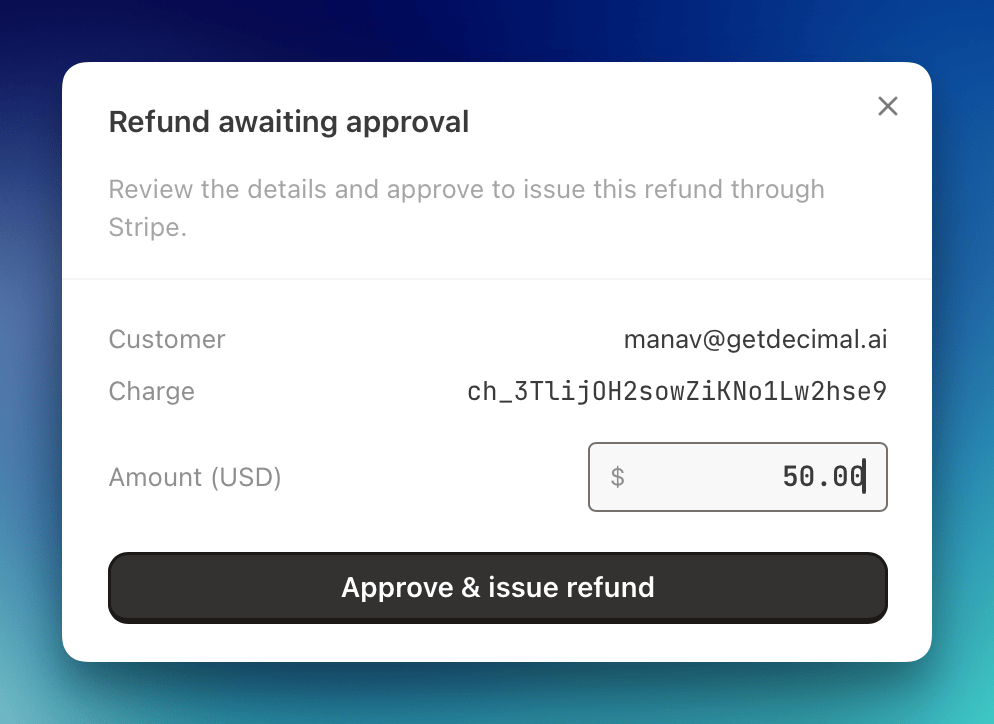
In Shadow mode, a recommended refund appears on the ticket for review. An operator confirms the amount and approves it, and Decimal issues the refund through Stripe. The agent always tells the customer their refund is **under review** — never that it has already been processed — until a human approves it.