> ## Documentation Index
> Fetch the complete documentation index at: https://docs.decimal.app/llms.txt
> Use this file to discover all available pages before exploring further.
# Pylon
> Connect your Pylon workspace to Decimal for issue syncing, resolution, and chat widget escalation.
The Pylon integration connects your Pylon workspace to Decimal for ticket syncing and chat widget escalation.
## What It Does
* **Syncs issues** from Pylon into Decimal as support tickets
* **Writes resolutions back** as comments on the original Pylon issue
* **Enables escalation** from chat widgets to create new Pylon issues
## Connecting Pylon
1. **Navigate to Integrations**: Go to the **Integrations** page in the sidebar.
2. **Click Pylon**: Click on the Pylon integration row to open the configuration modal.
3. **Provide your API key**: Enter your Pylon API key.
4. **Connect**: Click **Connect** to save the configuration.
## Webhook Setup
Configure a webhook for real-time ticket updates when customers reply to issues.
1. **Get a Decimal API key** from [Settings → API Tokens](https://app.getdecimal.ai/settings/api-tokens).
2. **Create a webhook in [Pylon Webhooks Settings](https://app.usepylon.com/settings/webhooks)** with this URL:
```
https://app.getdecimal.ai/api/external/pylon/webhook
```
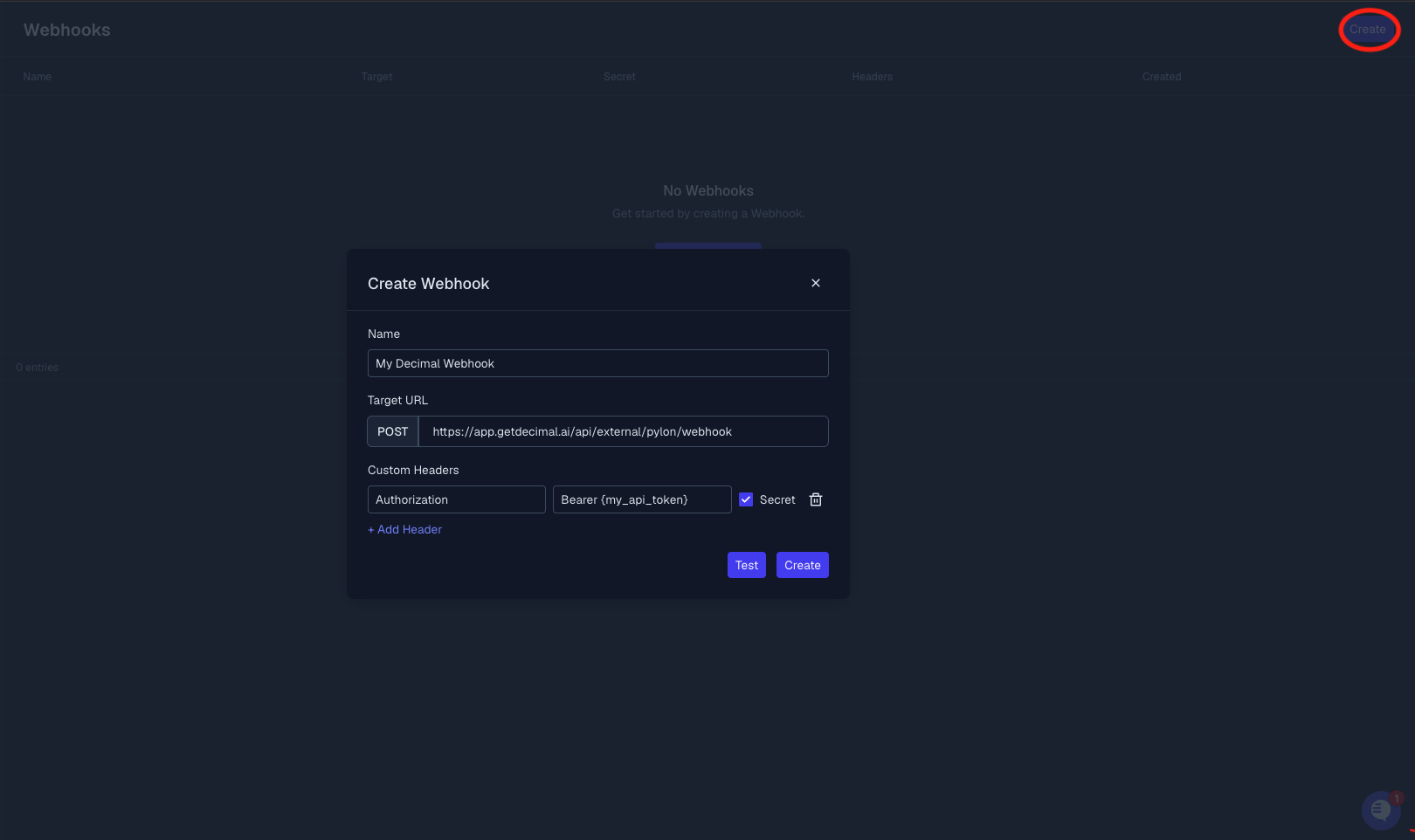 3. **Add an Authorization header** to the webhook:
```
Authorization: Bearer {your_decimal_api_key}
```
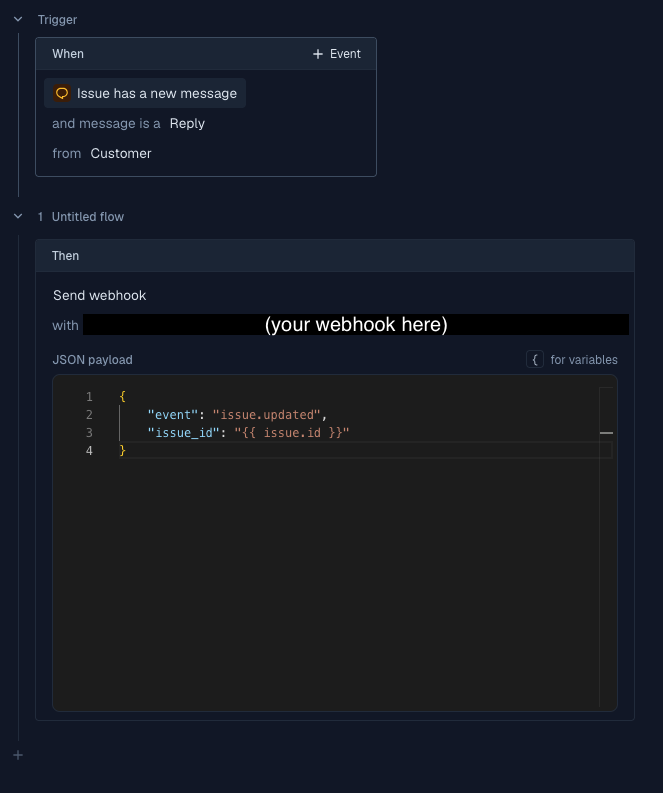
4. **Create a trigger in Pylon**:
* **When:** Issue has a new message and message is a reply from customer
* **Then:** Send webhook (select the webhook you created) with this payload:
```json theme={null}
{
"event": "issue.updated",
"issue_id": "{{ issue.id }}"
}
```
3. **Add an Authorization header** to the webhook:
```
Authorization: Bearer {your_decimal_api_key}
```
4. **Create a trigger in Pylon**:
* **When:** Issue has a new message and message is a reply from customer
* **Then:** Send webhook (select the webhook you created) with this payload:
```json theme={null}
{
"event": "issue.updated",
"issue_id": "{{ issue.id }}"
}
```
 5. **Copy the webhook secret** from Pylon and paste it into the **Webhooks** section of the Pylon integration settings in Decimal.
 ## Chat Widget Escalation
Once connected, Pylon can be selected as an escalation target for [Chat Widgets](/chat-widgets/overview). When a customer escalates a conversation, a new Pylon issue is created with the full chat history.
## Chat Widget Escalation
Once connected, Pylon can be selected as an escalation target for [Chat Widgets](/chat-widgets/overview). When a customer escalates a conversation, a new Pylon issue is created with the full chat history.