> ## Documentation Index
> Fetch the complete documentation index at: https://docs.decimal.app/llms.txt
> Use this file to discover all available pages before exploring further.
# Investigation
> Define the sections the agent's investigation summary follows, and choose the capabilities it can call while investigating.
Open **Settings**, select **Support Agent** under **Agents**, then **Investigation**. This is the shape of the investigation summary your team reads on a ticket, not the customer-facing reply.
Only the Support Agent has this tab, since it's the only agent that writes an investigation summary.
 ## Sections
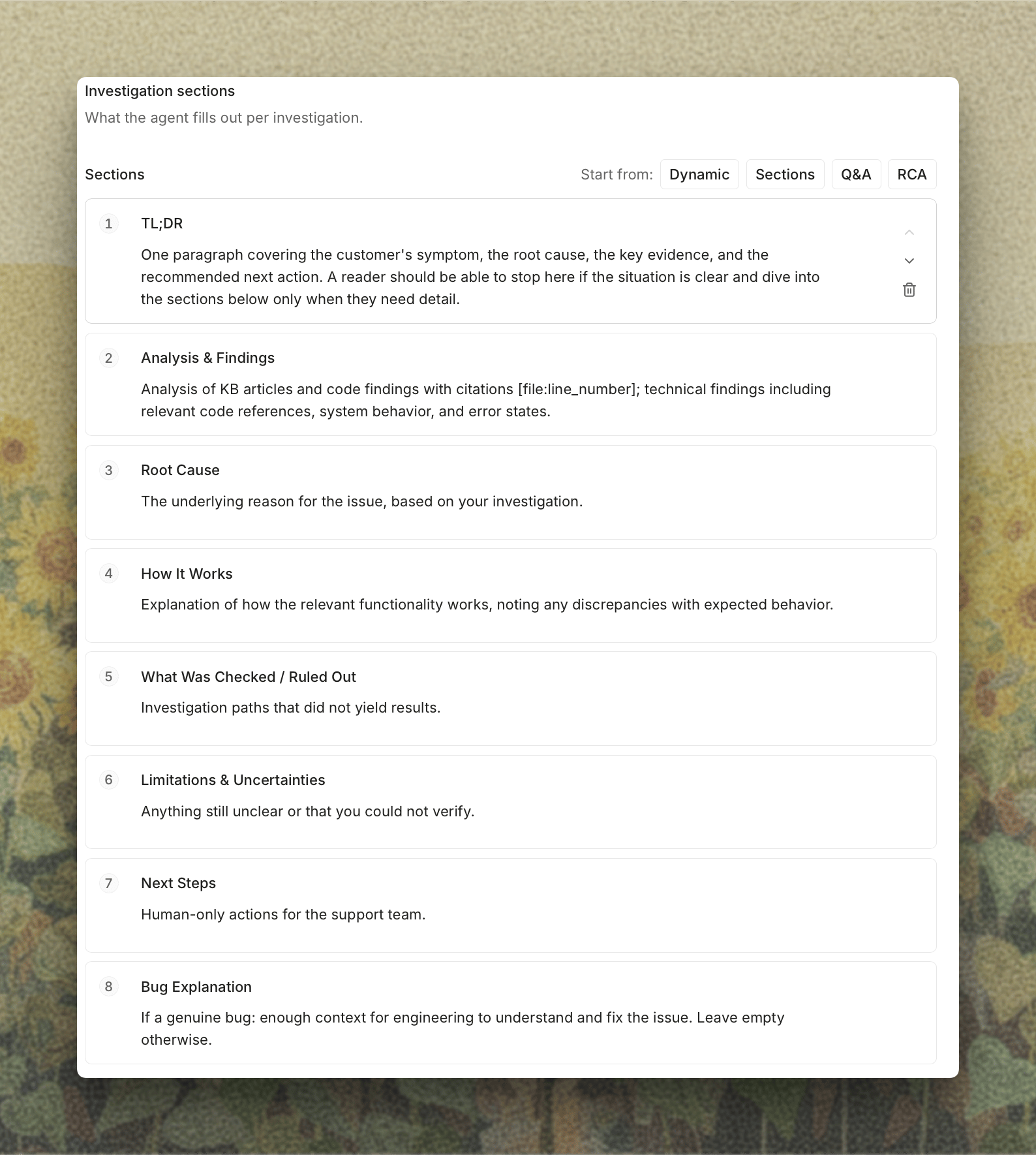
Each section has a **name**, which becomes the heading in the summary, and a **description** telling the agent what belongs under it. The description is where the work happens: "Root Cause" means little on its own, while "the specific code path or config that produced the behavior, or say you couldn't determine it" tells the agent what you expect.
Sections are numbered in the order the agent writes them. **Add section** appends one, and **Start from** replaces the list with a ready-made set:
* **Dynamic**: no sections, so the agent falls back to a single-section summary.
* **Sections**: a full write-up, from a TL;DR through findings, root cause, what was ruled out, and next steps.
* **Q\&A**: a short question, answer, and why, for how-to tickets.
* **RCA**: a summary, timeline, evidence, and resolution, for incidents and bugs.
The published sections also appear as the parts you can include in the investigation summary on the [Replies](/agents/replies#internal-notes) tab, and you can see the result on a real ticket in [Ticket Detail](/support/ticket#reading-the-answer).
## Publishing
Edits stay a draft until you press **Publish**, and an **Unsaved changes** bar sits at the bottom of the page until you do, with **Discard** next to it. The agent follows the published template on its next run, so an in-progress rewrite never reaches a ticket.
## Capabilities
## Sections
Each section has a **name**, which becomes the heading in the summary, and a **description** telling the agent what belongs under it. The description is where the work happens: "Root Cause" means little on its own, while "the specific code path or config that produced the behavior, or say you couldn't determine it" tells the agent what you expect.
Sections are numbered in the order the agent writes them. **Add section** appends one, and **Start from** replaces the list with a ready-made set:
* **Dynamic**: no sections, so the agent falls back to a single-section summary.
* **Sections**: a full write-up, from a TL;DR through findings, root cause, what was ruled out, and next steps.
* **Q\&A**: a short question, answer, and why, for how-to tickets.
* **RCA**: a summary, timeline, evidence, and resolution, for incidents and bugs.
The published sections also appear as the parts you can include in the investigation summary on the [Replies](/agents/replies#internal-notes) tab, and you can see the result on a real ticket in [Ticket Detail](/support/ticket#reading-the-answer).
## Publishing
Edits stay a draft until you press **Publish**, and an **Unsaved changes** bar sits at the bottom of the page until you do, with **Discard** next to it. The agent follows the published template on its next run, so an in-progress rewrite never reaches a ticket.
## Capabilities
Capabilities are enabled per workspace. [Email us](mailto:support@getdecimal.ai?subject=Enable%20agent%20capabilities) if you don't see them below the sections.
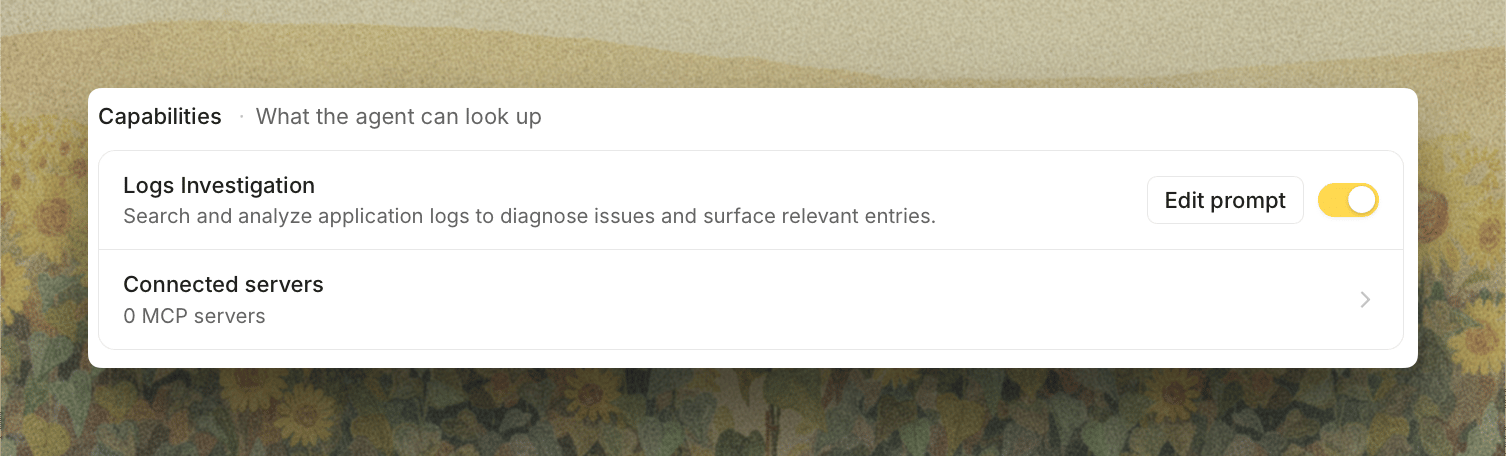
**Capabilities** lists what the agent can look up while investigating, such as **Logs Investigation**, which searches your application logs. Each one has its own switch. Turn one off and the agent stops calling it, even if the integration behind it stays connected.
**Connected servers** at the bottom shows how many [MCP servers](/integrations/mcp) you've connected and takes you to them.
**Edit prompt** next to a capability opens the instructions the agent follows when it uses it, such as which log service to search first or which fields matter. Saving publishes a new version that the agent uses on its next run.
 Turning a capability off narrows what the agent can find, which shows up as thinner investigations rather than an error. You can see which tools an investigation used on the ticket itself, under [Ticket Detail](/support/ticket#reading-the-answer).
This documentation is built and hosted on [Mintlify](https://mintlify.com), a developer documentation platform.
Turning a capability off narrows what the agent can find, which shows up as thinner investigations rather than an error. You can see which tools an investigation used on the ticket itself, under [Ticket Detail](/support/ticket#reading-the-answer).
This documentation is built and hosted on [Mintlify](https://mintlify.com), a developer documentation platform.